 Alex Martin
It’s a heart-stopping moment every WordPress site owner dreads: you go to check your site, and all you see is a blank, white page. No content, no dashboard, no error message. Nothing. This is the infamous WordPress White Screen of Death (WSOD), and while it looks terrifying, it’s rarely as catastrophic as it seems.
Think of it less like a fatal crash and more like a circuit breaker tripping. Something in the background—usually a plugin conflict or a server resource issue—has gone wrong, and WordPress has simply stopped the loading process cold to prevent further problems.
Understanding the White Screen of Death

When you hit the white screen, your first instinct is probably panic. Don't. It's one of the most common issues you'll run into, and it's almost always fixable. The blank screen happens when a critical PHP process or database query fails to complete, which halts the entire page from rendering. Instead of spitting out a complex error code, the server just gives up and returns… well, nothing.
For those of us working with Divi, this can feel a bit more common. That’s not a knock on Divi itself—it's highly optimized—but a reflection of its power. The Divi ecosystem, with its feature-rich builder and countless third-party add-ons, is naturally more resource-intensive. Stacking multiple complex plugins can easily strain your server's resources, leading to memory shortages or code conflicts that trigger the WSOD.
Common Triggers for the White Screen of Death
To get your site back online, the first step is figuring out what broke. Most of the time, the culprit falls into one of a few usual-suspect categories. The table below gives you a quick rundown of what to look for and where to start.
Common Triggers for the White Screen of Death
| Cause | Common Scenario | First Step to Check |
|---|---|---|
| Plugin Conflicts | You just installed a new plugin, or an existing one updated automatically and is now clashing with Divi or another plugin. | Deactivate plugins one by one (starting with the most recent). |
| Theme Issues | You recently added custom code to your child theme's functions.php file, or a Divi theme update was interrupted. |
Switch to a default WordPress theme (like Twenty Twenty-Four) to see if the error disappears. |
| PHP Memory Exhaustion | Your site is growing, and it's finally hit the memory limit set by your hosting plan. This is very common on cheaper shared hosting. | Increase the PHP memory limit in your wp-config.php file. |
| Corrupted Core Files | A WordPress auto-update failed partway through, leaving essential files damaged or missing. This is less common but can happen. | Manually reinstall the latest version of WordPress core files via FTP/SFTP. |
Knowing these common triggers helps you move from panic to a clear plan of action. Most of the time, the fix is just a matter of systematically checking these areas.
Key Takeaway: The White Screen of Death is one of the most prevalent yet misunderstood WordPress errors. In my experience, insufficient PHP memory is the number one cause. When WordPress tries to run its scripts and runs out of the resources allocated by your host, the process just dies, leaving you with a blank screen. You can learn more about how crucial PHP memory is for your site's health on flow.ninja.
Finding the Clues in Your WordPress Error Logs
Staring at the white screen of death feels like hitting a digital brick wall. It’s frustrating because it gives you absolutely nothing to go on. But behind that blank void, WordPress usually knows exactly what’s wrong; it’s just not talking.
Our first job is to give it a voice. The single most powerful step you can take right now is to turn on WordPress's built-in debugging mode. This forces it to spill the beans and show you the error messages it’s been hiding.
Think of these messages as your treasure map. They take a vague, infuriating problem and turn it into a specific, fixable task. More often than not, they’ll point you directly to a rogue plugin or a single line of bad code. You don’t need to be a developer—you just need to be a detective.
How to Enable WordPress Debug Mode
To get things rolling, you’ll need to make a quick edit to a core file called wp-config.php. You can find this file in the main (or root) directory of your WordPress installation. The easiest way to get to it is with an FTP/SFTP client like FileZilla or through the File Manager in your web hosting control panel.
Once you have the wp-config.php file open, hunt for this line of code:
define( 'WP_DEBUG', false );
Got it? Great. Just change that false to true. Your goal is to make the line look exactly like this:
define( 'WP_DEBUG', true );
If you can't find that line anywhere, don't sweat it. You can just add it yourself on a new line right above the comment that says, /* That's all, stop editing! Happy publishing. */.
Now, save the file and upload it back to your server, making sure to overwrite the old version. Go ahead and reload your broken website.
Instead of that useless white screen, you should now see some error messages. This feedback is pure gold. An error message might look a little scary at first, but it's your best friend right now, telling you the exact file path and line number that’s causing all the trouble.
Deciphering the Error Messages
The error messages will almost always point to a specific file path. Pay close attention to this path, because it’s packed with clues that will lead you straight to the source of the white screen.
- A path with /wp-content/plugins/some-plugin/ tells you the problem is with a specific plugin. The fastest fix is to disable it.
- A path with /wp-content/themes/Divi-child/ points to an issue inside your child theme, very often in the
functions.phpfile. - A path with /wp-content/themes/Divi/ suggests a problem with the main Divi theme files themselves, though this is much less common.
For instance, you might see something like this: Fatal error: Cannot redeclare function_name() in /home/user/public_html/wp-content/plugins/conflicting-plugin/plugin-file.php on line 52.
This one message tells you everything you need to know: the "conflicting-plugin" is the bad guy. While PHP errors like this are the most common cause of the white screen, sometimes the issue is on the front end. Learning how to find JS errors is another valuable skill for getting a complete picture of what's going on.
Once you've identified the culprit from the error log, you can move on to a targeted fix, like deactivating the faulty plugin or fixing that typo in your child theme's code.
Just remember to turn debug mode back off when you're done by changing true back to false. You don't want to leave those error messages visible to your visitors.
Tackling Plugin and Theme Conflicts
Okay, so your error logs have given you a solid lead. Now, the real detective work begins: isolating the exact cause of the white screen of death. In my experience, nine times out of ten, the culprit is a compatibility meltdown between your plugins, your theme, or even the WordPress core itself. This is especially common in a powerful ecosystem like Divi, where different tools can sometimes step on each other's toes.
The process from here is methodical, not magical. It's all about systematically turning things off until your site pops back to life. I know it sounds a bit tedious, but it’s hands-down the most reliable way to get a definitive answer and stop guessing.
This flowchart lays out the basic workflow, from enabling error logs to hunting for clues.
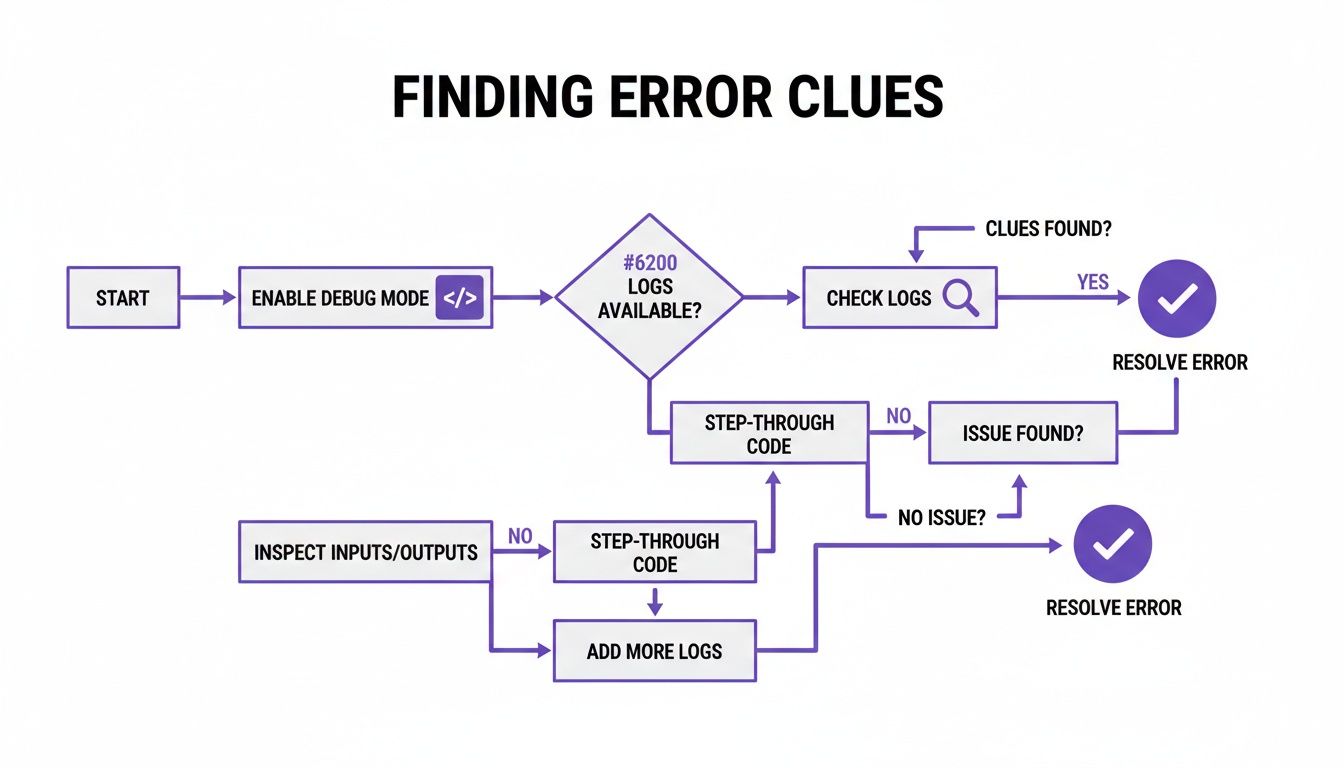
Following this path transforms the problem from a scary, unknown error into a targeted mission. The key is to let the error messages point you in the right direction.
Finding the Rogue Plugin Without Dashboard Access
If your error log points a finger at a specific plugin, or you just have a gut feeling it's a plugin conflict, the first move is to deactivate them. But what do you do when the WSOD has you locked out of your own admin dashboard? This is where an FTP client (like the excellent, free FileZilla) or your host's File Manager becomes your best friend.
First, you'll want to navigate to your WordPress installation's root folder and then open the wp-content directory. Inside, you'll see a folder named plugins.
The trick is to simply rename this folder. Call it something like plugins_deactivated. That single change effectively disables every plugin on your site in one go.
Now, go back and try reloading your website. If it loads, you've just confirmed a plugin is the problem. Hallelujah!
To figure out which plugin is the troublemaker:
- Rename the folder back to
plugins. - Now, go inside the
pluginsfolder. - Start renaming each individual plugin's folder, one by one. After each rename, reload your site.
- The moment your site breaks again, you've found your culprit.
Checking for Theme Conflicts
If turning off all the plugins didn't bring your site back, your theme is the next logical suspect. This is a big one for Divi users, especially if you're using a child theme or have dropped some custom code snippets into your functions.php file. I've seen a single misplaced comma in that file bring an entire site to its knees.
The process is pretty much the same as the plugin method. Using FTP, head over to wp-content/themes. Find your active theme's folder (e.g., Divi-child) and rename it to something like Divi-child_deactivated.
This action forces WordPress to fall back to a default theme, like Twenty Twenty-Four. If your site suddenly reappears, you know the problem is hiding somewhere in your theme's code.
It's important to remember that a theme conflict doesn’t automatically mean Divi itself is broken. More often, it points to outdated theme files, a bad child theme modification, or a clash with a recently updated plugin that used to play nice with Divi. Keeping your theme up-to-date is non-negotiable, and our guide on how to update the Divi theme walks you through how to do it safely.
I've also seen some Divi-specific scenarios cause headaches. For example, overly aggressive caching or security plugins can sometimes interfere with Divi’s builder scripts. These conflicts can be subtle and might only surface after a minor update, which is why this methodical process of elimination is your most reliable diagnostic tool.
Tackling Server-Side Problems Like PHP Memory Limits
If you’ve ruled out plugins and themes and are still staring at a white screen, it’s time to look under the hood. The next likely culprit isn’t a compatibility conflict, but a resource issue on your server.
Think of a powerful Divi site, packed with high-res images, tons of plugins, and complex layouts, as a high-performance engine. It needs fuel to run, and in the WordPress world, that fuel is PHP memory.
Many hosting plans, especially the cheaper shared ones, are notoriously stingy with PHP memory. When Divi tries to render a complex page and asks for more memory than the server is allowed to give, the process just quits. Cold. The result? An abrupt stop and that dreaded blank white screen. I've seen this happen countless times with growing Divi sites.
Increasing Your PHP Memory Limit
Fortunately, bumping up this limit is often a quick fix. The most direct route is to add a single line of code to your wp-config.php file, which you can get to using an FTP client or your host’s File Manager.
Find the line that says /* That's all, stop editing! Happy publishing. */ and add this snippet right before it:
define('WP_MEMORY_LIMIT', '256M');
I usually recommend starting with 256M, which is a solid baseline for a modern Divi site. If you're on a very lean setup, you could try 128M first. Save the file, reload your site, and if the white screen is gone, you’ve found your problem.
Just a heads-up: some hosting providers will override this setting at the server level. If editing the file does nothing, your best bet is to send a quick message to your host's support team. Just ask them to increase your PHP memory limit, and they can usually handle it for you.
Dealing with server-side limits is a lot like identifying application performance bottlenecks. It's a fundamental part of keeping your site healthy and running smoothly. If you want to go deeper into optimizing your hosting environment, our guide on server performance optimization is packed with valuable insights.
Dealing With Corrupted Core Files
It's less common, but another server-side issue that can trigger a white screen is corrupted WordPress core files. This can happen if a WordPress update gets interrupted—maybe from a server timeout—leaving your installation in a broken state.
It sounds scary, but the fix is basically just swapping out the faulty files for a fresh set.
This process won't touch your content, themes, or plugins. Your wp-content folder, where all your unique data lives, will be left completely untouched.
Here's the safest way to handle it:
- Download a Fresh Copy: Head over to the official WordPress.org site and grab the latest version of WordPress.
- Unzip the File: Extract the contents of the ZIP file to a folder on your computer.
- Delete Old Folders (Safely): Using FTP, connect to your server. Find and delete the
wp-adminandwp-includesfolders. Do not delete thewp-contentfolder or yourwp-config.phpfile. - Upload New Folders: From the fresh WordPress files you just unzipped, upload the new
wp-adminandwp-includesfolders to your server in their place. - Upload Loose Files: Finally, upload all the individual files from the new WordPress root directory (like
index.php,wp-login.php, etc.), letting them overwrite the old ones on your server.
This effectively gives your site a brand new WordPress core, fixing any corruption issues and, more often than not, clearing up the white screen of death for good.
Preventing the White Screen of Death from Happening Again
Fixing the white screen of death is a huge relief, but the real win is making sure you never have to deal with it again. The key is to shift from reactive panic to a proactive mindset. It all boils down to building a few simple, non-negotiable habits into your workflow.
These practices aren't complex or time-consuming, but they create a critical safety net that catches problems long before they can take your entire site offline. Think of it as essential maintenance for your most important digital asset.
Adopt Proactive Website Habits
The single most important change you can make is to stop using your live site as a playground. A staging environment—an exact clone of your live site—is an absolute must-have. It gives you a private sandbox to test updates, try out new plugins, and experiment with code without any risk to your actual website.
Most quality managed WordPress hosts offer one-click staging environments these days, making this process incredibly simple.
Beyond that, a few core practices will dramatically lower your risk of seeing that dreaded white screen:
- Choose Quality Plugins: Not all plugins are created equal. I can't stress this enough. Stick to well-maintained plugins from reputable developers that specifically state they're compatible with Divi. Before you install anything, check for recent updates and active support forums.
- Implement Regular Backups: This is non-negotiable. Seriously. Set up automated, daily backups and make sure they are stored off-site (not on the same server). If the worst happens, you can restore your site in minutes instead of spending hours, or even days, trying to fix it.
- Invest in Good Hosting: Cheap, shared hosting is often the root cause of memory-related white screens. A reliable managed WordPress host provides better resources, stronger security, and access to expert support who actually knows what they're doing.
A white screen error does more than just cause a temporary outage; it fundamentally damages your brand's credibility. Studies show that 75% of consumers judge a brand's trustworthiness based on website performance, which highlights just how critical uptime is for your business.
To minimize the risk of software conflicts, implementing an effective patch management strategy for your WordPress core, plugins, and themes is crucial. This systematic approach ensures all your site's components are updated safely and on a schedule, preventing the very compatibility issues that so often lead to site failures. These simple habits are your best defense against future downtime.
Frequently Asked Questions
The white screen of death is a heart-stopping moment, especially the first time you see it. It’s stressful, I get it. To help you push through with a bit more confidence, here are some quick answers to the questions I hear most often from people in the middle of a site rescue.
Will Fixing the White Screen of Death Delete My Content
Let me put your mind at ease: No. In almost every case, your content is perfectly safe.
The WSOD is just a display error. It means something in the code—usually a plugin or theme file—is broken and stopping WordPress from showing you anything. It has nothing to do with your database, which is where all your pages, posts, images, and Divi layouts are safely stored.
Think of it like this: when you disable a plugin, you’re just turning off its code. You aren't deleting a single bit of your hard work. Once you find and fix the conflict, your site and all its content will pop right back into view, exactly as you left it.
My Admin Dashboard Is White but My Website Is Working What Now
This happens more often than you'd think, and it's a massive clue. An inaccessible admin area with a working front-end almost always points a finger at a plugin or a theme function that only messes with the backend. Your visitors are blissfully unaware, but you're locked out.
The fastest way to confirm this is to jump into your site via FTP or your host's file manager and rename the main plugins folder (maybe to plugins_old). If that lets you log in, you've found your culprit—it's definitely a plugin.
Just rename the folder back to plugins, then start renaming the individual plugin folders inside it one by one until you find the one that's causing the problem. If it's not a plugin, the issue is probably in your theme's functions.php file, especially if you recently added some custom code.
Expert Tip: I've personally seen this happen dozens of times after an update to a security plugin or an admin customization tool. That "rename the folder" trick via FTP is my go-to move. It cuts through the guesswork and gets you back in control in minutes.
Can a Caching Plugin Cause the White Screen of Death
Oh, absolutely. Caching plugins are notorious for this. They're fantastic for speed, but if a cache file gets corrupted—often during a theme or plugin update—it can bring the whole site down.
Since you can't log in to click the handy "Clear Cache" button, you have to get your hands dirty and do it manually.
- Connect to your server using an FTP client.
- Head over to the
wp-contentdirectory. - Look for a folder named
cacheor something similar created by your caching plugin (likewp-rocket-cacheorw3tc). - The important part: Delete the contents of the folder, not the folder itself.
If you're still stuck, you can just rename that specific caching plugin's folder inside of wp-content/plugins. That will deactivate it completely and should get your site back online if a bad cache file was the problem.
At Divimode, we build tools that empower Divi users to create stunning, high-performing websites. Take your site to the next level with our powerful plugins and expert guidance. https://divimode.com
More Articles You Will Like