 Alex Martin
So, what exactly is a Divi theme template? Think of it as a professional design blueprint for your website. It's a pre-designed layout, or even a full multi-page website kit, that you can import directly into the Divi Builder. This gives you a complete structural and stylistic foundation, saving you from the intimidating task of starting with a blank canvas.
Why Start With a Template?
Before you dive into building, it's worth understanding how a Divi theme template can completely change your workflow for the better. This is way more than just a pretty design; it’s a fully functional starting point loaded with modules, sections, and even responsive settings already configured for you.
This approach is a huge reason for Divi's popularity. It lets you achieve a polished, professional look without ever touching a single line of code. The ecosystem is massive, offering solutions for just about any project you can dream up—whether you're building a simple blog, a corporate site, or a sophisticated e-commerce store.
Different Tools for Different Jobs
Not all Divi templates are the same. Knowing the difference is key to picking the right starting point for your project and avoiding headaches down the road.
To make things clearer, here's a quick breakdown of the main template types you'll encounter in the Divi world.
Divi Template Types Explained
| Template Type | Best For | Key Feature |
|---|---|---|
| Pre-made Layouts | Single pages, like a "Contact" or "About Us" page. | Can be loaded directly into an existing page via the Divi Builder. |
| Website Kits | Building a full website with a cohesive design from the start. | A complete package of layouts for all key pages (Home, Services, etc.). |
| Theme Builder Templates | Controlling global site elements like headers and footers. | Applies a design sitewide to specific post types or archives. |
Understanding these distinctions helps you work smarter. You can mix and match, using a Website Kit for your core pages and then fine-tuning your blog post structure with a Theme Builder Template.
Divi's Grip on the Market Is No Accident
The numbers don't lie. As of 2025, WordPress powers over 43% of all websites on the internet. Of those, Divi is used on a staggering 6-10%, which translates to millions of live sites. That makes it one of the most dominant premium WordPress themes ever created.
This incredible adoption rate has fueled a huge third-party marketplace for child themes, plugins, and tutorials. You’re never really on your own when you build with Divi.
By using a Divi theme template, you're doing more than just grabbing a design. You're plugging into a mature, powerful ecosystem built to make web design faster, more accessible, and incredibly flexible. This is the real advantage that helps everyone from beginners to seasoned pros get projects done faster.
For a deeper dive into Divi's core mechanics, check out our complete guide on what the Divi theme is and how it all works.
How to Choose the Right Divi Template for Your Needs
With thousands of Divi theme templates out there, picking the right one can feel overwhelming. It's easy to get lost in a sea of beautiful designs. But instead of just scrolling endlessly, having a clear framework helps you make a confident choice that actually serves your project's goals. This isn't just about finding a pretty face for your site; it's about selecting a solid foundation you can build on.
The very first step is to nail down what your website needs to do. Are you building a simple portfolio to show off your creative work, or are you launching a complex e-commerce store with hundreds of products? The answer completely changes what you should be looking for.
Start With Your Strategic Goals
Before you even glance at a single design, get clear on your site's primary purpose. A sharp objective makes the whole selection process a thousand times easier.
Put yourself in your visitor's shoes. What's the number one action you want them to take?
- For a freelance photographer: The main goal is probably getting potential clients to fill out a contact form. You'll want a template with a killer portfolio gallery and a can't-miss call-to-action.
- For a local restaurant: The objective is likely to drive online reservations and show off the menu. In that case, look for a template with built-in menu layouts and maybe even an integration with a booking system.
- For an online course creator: Here, the focus is all on lead generation and sales. Your template absolutely needs solid layouts for landing pages, pricing tables, and glowing testimonials.
By defining your goals first, you immediately filter out 90% of the noise. You can zero in on templates that are actually built to get you the results you're after.
Align the Template With Your Brand Identity
Think of a template as a starting point, not a straitjacket. Your brand's visual identity—your logo, color palette, typography—needs to be the star of the show. When you're looking at a Divi theme template, ask yourself if its core structure is flexible enough to adapt to your brand without a fight.
Some templates come with very strong, opinionated designs that are tough to change without a complete overhaul. Others offer a more neutral, clean foundation that's a breeze to customize. You're looking for that sweet spot: a design that gives you a head start but doesn't box you in.
A great template doesn't force its style on you; it provides a professional framework you can easily mold to fit your own. If the demo looks amazing but you can't picture it with your logo and colors, it's probably not the right fit.
Finding and Evaluating High-Quality Templates
You'll find Divi templates in two main places: the massive, built-in Divi Library and various third-party marketplaces. The Divi Library is a goldmine, packed with hundreds of professionally designed layout packs that come with your Elegant Themes membership. For more niche or specialized designs, marketplaces like Divi Cake or the official Divi Marketplace are fantastic resources.
The commercial marketplace is a competitive space. It's common for agencies to budget for yearly theme subscriptions, often running $100–$300 annually. This makes Divi’s all-inclusive model a very attractive option economically and has fueled a robust secondary market for premium templates and plugins. You can dive deeper into the economics of the WordPress ecosystem in this comprehensive market analysis.
Once you've found a template that catches your eye, run it through this quick checklist:
- Mobile Responsiveness: Pop open your browser's developer tools and see how the template looks on mobile, tablet, and desktop screens. Does the layout adapt gracefully, or does it fall apart?
- Plugin Compatibility: If you know you need specific plugins, like WooCommerce or a particular membership tool, check if the template was built with them in mind.
- Design Quality: Look past the shiny stock photos. Are the fonts easy to read? Is there enough white space? Does the layout guide your eye where it needs to go?
- Feature Set: Does it come with the specific page layouts you need? For an e-commerce site, this is non-negotiable. You'll need pre-designed product pages, a clean cart, and a functional checkout process. A good WooCommerce template will have all of this ready to go.
Installing and Importing Your New Template
Alright, you've picked out the perfect Divi theme template. Now it's time for the fun part: bringing it to life on your WordPress site. This process is surprisingly straightforward, and Divi gives you a couple of solid ways to get your design loaded up, whether it’s from their native library or a third-party creator.
The magic behind it all is Divi's Portability System. This powerful feature is built right into Divi and lets you export and import entire designs as simple .json files. Think of it like a universal remote for your layouts—you can move them between sites or load them from a downloaded file with just a few clicks. It's what makes the whole Divi ecosystem so flexible.
Preparing for a Smooth Import
Before you jump in, a quick pre-flight check can save you from a lot of common headaches. Trust me, spending two minutes on this now is better than spending an hour troubleshooting later.
First, make sure you're running the latest version of both WordPress and the Divi theme. Mismatched versions are a classic culprit for weird glitches during an import. Second, it's always a smart move to create a backup of your site, especially if you're working on a live project. A quick backup is your safety net, giving you total peace of mind.
To make your selection process easier, this visual guide breaks it down into the core components.
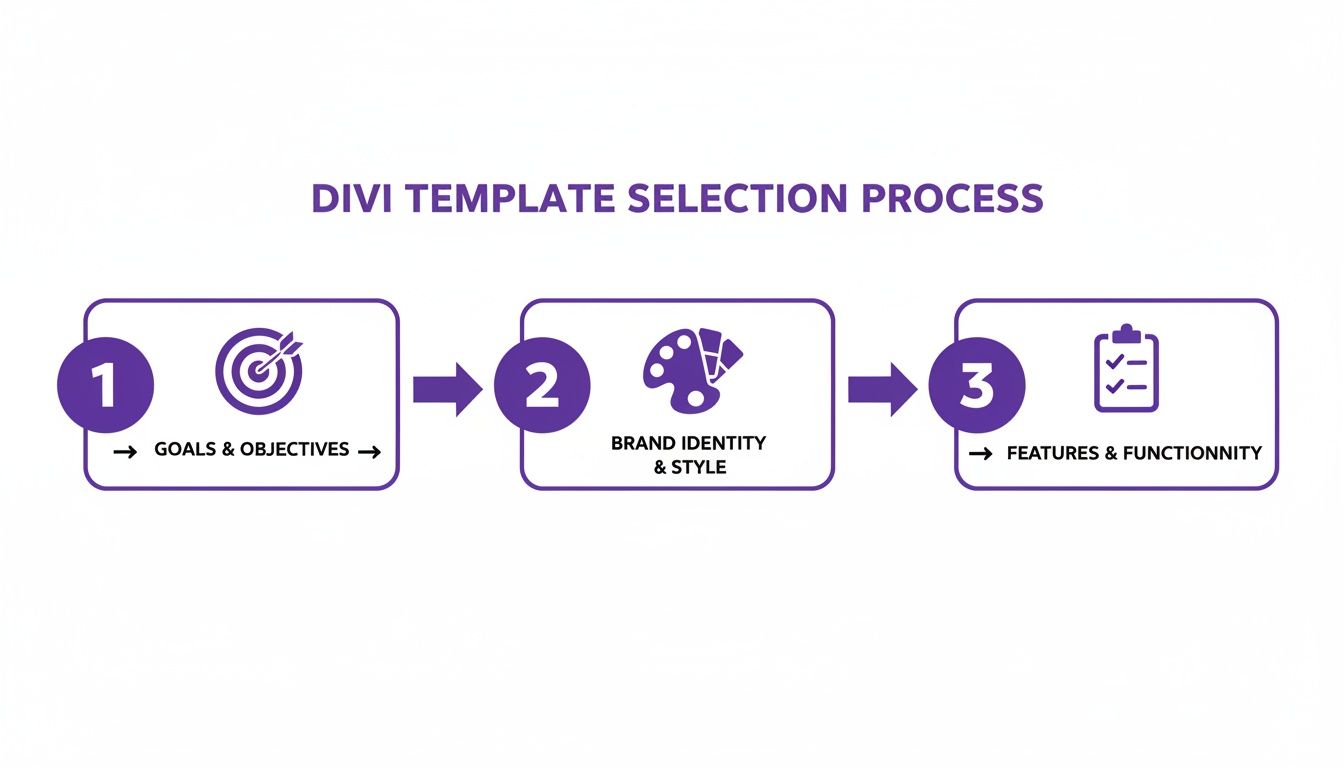
This workflow shows that a great template choice starts with clear goals, gets filtered through your brand identity, and is finalized by making sure it has all the features you need.
Importing from the Divi Library
Divi's built-in library is the fastest way to get a site up and running. It’s packed with professionally designed layout packs that cover pretty much any industry you can think of.
To get to it, just create a new page in WordPress and fire up the Divi Builder. You'll see a prompt to "Choose a Premade Layout." Clicking this opens the "Load From Library" window, where you can browse hundreds of complete website kits. Filter by category or search for keywords to find what you're looking for. Once you land on a layout you love, just click it to import it directly onto your page.
Pro Tip: When you import a layout, Divi gives you the option to replace the existing content. If you're starting with a blank canvas, this is exactly what you want. But if you're adding a layout to an existing page, pay close attention to this setting so you don't accidentally wipe out your work.
Using Third-Party Template Files
If you bought a Divi theme template from a marketplace, you probably got a .json file. This little file contains all the design data for your new layout or Theme Builder template. Importing it is also handled through Divi’s Portability System.
Here’s the usual workflow for a page layout:
- Head to the Divi Library: From your WordPress dashboard, go to
Divi > Divi Library. - Find the Portability Options: Look for the "Import & Export" button at the top of the Divi Library screen and give it a click.
- Import Your File: In the window that pops up, switch to the "Import" tab. Select your downloaded
.jsonfile and hit the "Import Divi Builder Layouts" button.
Once the import finishes, the template will appear in your Divi Library, ready to be loaded onto any page just like one of Divi's own pre-made layouts. For a more detailed guide, you can learn more about how to use the Divi layout library templates effectively in our knowledge base.
If your template is for the Theme Builder (for things like custom headers and footers), the process is almost identical. You’ll just go to Divi > Theme Builder and use the portability icon (the one with the two arrows) to import your .json file there.
Ever have an import stall or fail? It's almost always due to server resource limits. A quick fix is to check your hosting provider’s PHP settings for values like max_upload_size and max_execution_time. Bumping those up usually solves the problem instantly.
Right, you've got your Divi template installed. Now for the fun part.
Think of that template less as a finished product and more as a professional launchpad. The real magic happens when you jump into the Divi Builder and start making it your own. This is where you inject your brand's personality, your voice, and your unique style into the design.
The template gives you a solid, well-built structure. You're the architect who decides on the final finishes.
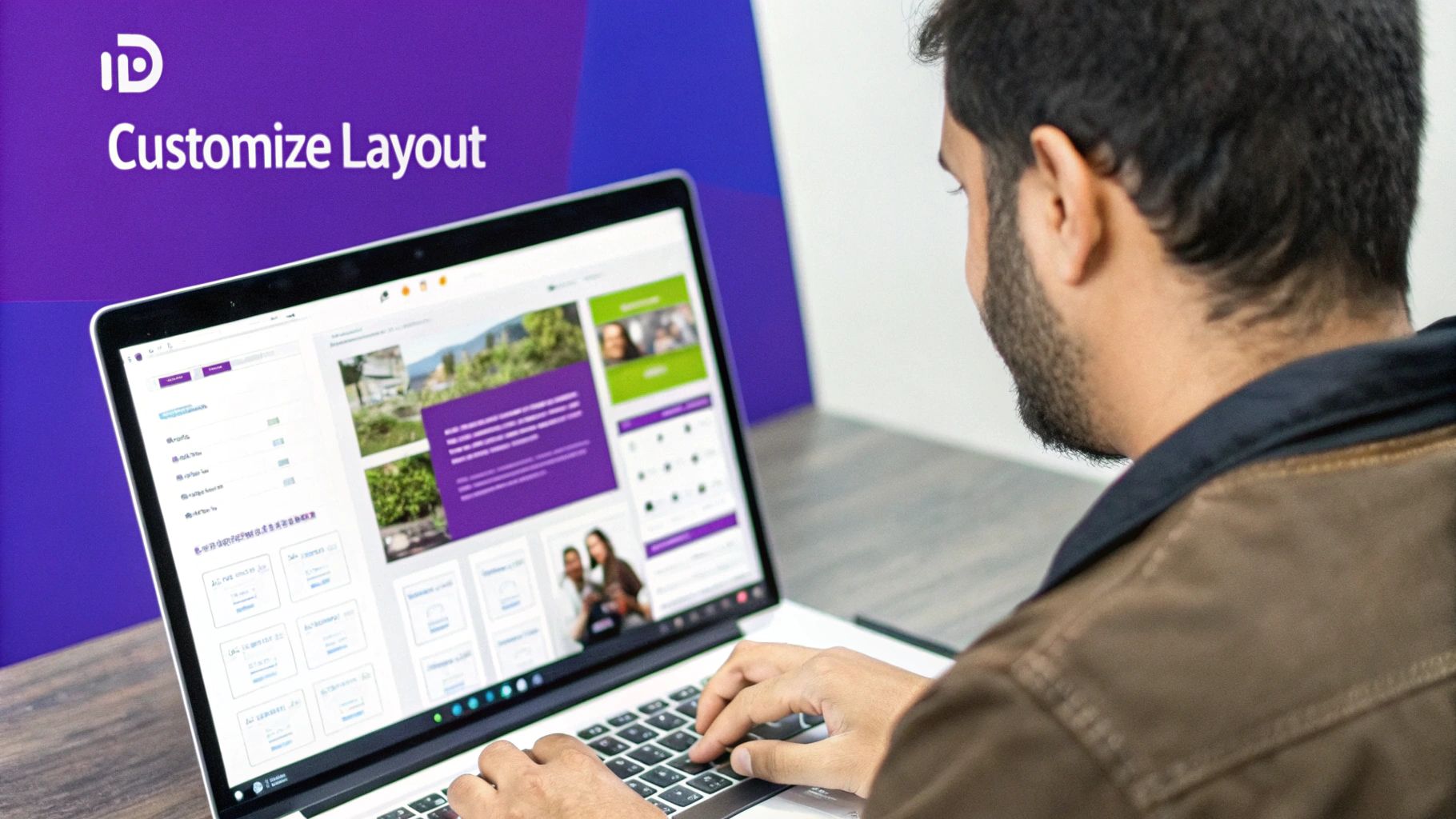
Modifying Layouts and Structure
Every Divi page is built on a simple but powerful hierarchy: Sections (the big blue containers), Rows (the green containers that create columns inside sections), and Modules (the gray content blocks like text, images, and buttons).
Once you get the hang of this structure, you can customize anything with confidence. Don't be shy about experimenting. Duplicate a whole section to try out a new layout without messing up the original. Drag and drop a row to a new spot to see how the flow changes. The visual interface gives you instant feedback, so you can see what works.
Here's a common scenario: Your template's "Services" section has three columns, but you offer four key services. No problem. Just hover over the green row settings, click the column icon, and pick the four-column layout. Divi handles the spacing automatically, leaving you to simply add your new content module. Easy.
Fine-Tuning Module Settings for a Custom Feel
Every single module in Divi is packed with design options. This is where you go beyond just swapping out text and images. For instance, don't just settle for the default button style. You can customize:
- Custom Fonts and Text Styles: Match your brand's typography down to the pixel.
- Unique Hover Effects: Add subtle animations that surprise and delight visitors.
- Custom Spacing: Use padding and margins to give your content breathing room.
- Box Shadows and Borders: Create depth and make important elements pop.
By digging into these settings, you ensure your site doesn't look like it just came out of a box. It’s this level of detail that elevates a good design to a great one.
This whole visual builder approach isn't just a Divi thing; it's where the industry is heading. By 2025, it's estimated that page builders will power 50–60% of all WordPress sites. Divi consistently ranks in the top three, with millions of users. So, by mastering the builder, you're aligning your skills with the most popular and supported methods in modern web design. You can read more about WordPress growth and page builder trends in this analysis.
Mastering Responsive Design
A stunning desktop design that falls apart on a smartphone is a design fail. Plain and simple. Thankfully, Divi's responsive tools are incredibly intuitive.
Inside the settings for any section, row, or module, you'll see a little phone icon next to most design options. Click it. This lets you set different values for desktop, tablet, and mobile. For example, you can have a large, impactful headline on desktops but shrink it down for mobile to ensure it's readable and doesn't dominate the screen.
Pro Tip: Pay close attention to responsive spacing (margin and padding). The generous white space that looks clean on a desktop can create endless scrolling on a phone. Toning down the top and bottom padding on mobile is one of the quickest ways to improve the user experience.
Leveraging Global Styles for Brand Consistency
Here's one of my favorite time-savers: Global Styles. This feature lets you set default colors and fonts for your entire site from one central place.
Instead of changing the color of every single button manually, you can set a global primary color. From then on, every new button you add will automatically use that color. If you decide to rebrand later, you just change that one global setting, and your entire site updates instantly.
This is a massive time-saver, but more importantly, it locks in perfect brand consistency. To set a global style, just open a module's design settings, right-click on an option like "Text Color," and choose "Make Style Default." That's it. You're now managing your site's design the smart way.
To help you get started, here's a quick rundown of the most important customization areas in the Divi Builder.
Key Divi Builder Customization Areas
This table breaks down the core areas you'll be working with in the Divi Builder and explains why each one is so crucial for creating a custom, high-performing website.
| Customization Area | What It Controls | Why It Matters |
|---|---|---|
| Module Settings | Individual content elements (text, images, buttons). | Provides granular control for a unique, polished look. |
| Responsive Views | How layouts appear on desktop, tablet, and mobile. | Crucial for user experience and SEO. |
| Global Styles | Site-wide default colors, fonts, and button styles. | Ensures brand consistency and saves massive amounts of time. |
| Row/Column Structure | The grid and layout of your content within sections. | Allows you to adapt the template to your specific content needs. |
By mastering these customization tools, you can transform any Divi theme template from a generic starting point into a website that truly represents your brand's vision.
Getting Your Divi Template Ready for Speed and SEO
Having a gorgeous Divi theme template is fantastic, but it's only half the story. If you want your site to actually succeed, it needs to be lightning-fast for visitors and crystal clear for search engines. This isn't something you bolt on at the end; optimizing for speed and SEO from the get-go is what ensures all your design work gets the visibility it deserves.
The good news is that Divi has a pretty powerful set of performance tools baked right in. You can find them by heading over to Divi > Theme Options > Performance. This is where the magic happens.
Features like Dynamic CSS and Critical CSS are designed to tackle render-blocking resources, which are a common reason pages feel slow to load. Toggling on Defer JavaScript is another smart move, as it lets your site's important content show up first while scripts load in the background. My advice? Don't just flip every switch on. Test your site with a tool like GTmetrix after each change to see what actually moves the needle for your specific setup.
Fine-Tuning On-Page Performance
Beyond Divi's settings, the stuff you actually put on your pages—your content and media—plays a huge role in site speed. I can't tell you how many slow sites I've seen that were simply choked by massive, unoptimized images. It's the most common culprit, by far.
Before you upload a single image to WordPress, run it through a compression tool like TinyPNG. Make sure it's sized correctly for where it will be used. It takes seconds but makes a world of difference.
Your web hosting is another piece of the puzzle. That cheap shared hosting plan might seem like a good deal, but for a live site, it's often a bottleneck. Investing in quality managed WordPress hosting gives you a much faster and more reliable foundation to build on.
Here’s a quick checklist I run through to boost speed:
- Caching is a must: Grab a reliable caching plugin like WP Rocket. It serves up static versions of your pages, which is way faster.
- Handle your images: Compress every image and try to serve them in next-gen formats like WebP if you can.
- Use a CDN: A Content Delivery Network (CDN) is a game-changer for reaching a global audience. It stores copies of your site in different locations around the world, cutting down load times for international visitors.
Speed isn't just a technical vanity metric; it's a core business metric. We've seen countless studies showing that even a one-second delay in page load time can cause a significant drop in conversions. A faster site literally makes you more money.
Structuring Your Template for SEO Success
Great SEO is built on a solid, logical structure. This is easy to manage in the Divi Builder but often overlooked. Always use your heading tags hierarchically. Your main page title should be your only H1. Use H2s for the main sections and H3s for the sub-topics within them. This simple hierarchy is like a roadmap for search engines, helping them understand what your content is all about.
When you're working with your template, make sure to apply fundamental on-page SEO best practices to give your content the best possible chance to rank.
I also recommend using a trusted SEO plugin like Yoast SEO or Rank Math. These tools let you easily manage your page titles and meta descriptions, which are your sales pitch on the search results page. A well-written meta description can be the difference between getting a click and getting ignored.
For a deeper dive, our guide on how to speed up your Divi website has even more tips. By putting these SEO and speed optimization techniques together, you’ll have a Divi site that doesn't just look amazing—it performs brilliantly, too.
Frequently Asked Questions About Divi Templates
Getting started with a Divi theme template can bring up a few questions, especially when you're trying to figure out how all the pieces fit together. Let's tackle some of the most common ones I hear so you can get back to building with confidence.
Can I Use Divi Templates with Other Themes?
Straight to the point: no, you can't. A Divi theme template is built from the ground up to function inside the Divi ecosystem. All the layouts, modules, and custom settings are saved in a special format that only the Divi Builder knows how to read.
Think of it like this: the Divi theme, the Divi Builder, and Divi templates are three parts of a single, integrated system. To use any kind of Divi template or layout, you absolutely must have the Divi theme installed and active on your WordPress site.
Do I Need to Know How to Code to Customize Templates?
Definitely not, and frankly, that’s one of the biggest reasons people fall in love with Divi. For almost everything you'll want to do, you won’t need to look at a single line of code. It's all handled through a visual, drag-and-drop interface.
You can control pretty much everything right from the builder:
- Structure: Add, move, or delete entire sections, rows, and columns with a click.
- Design: Tweak colors, fonts, spacing, and even add animations using intuitive sliders and pickers.
- Content: Fine-tune every single module using its own easy-to-navigate settings panel.
While the option to add custom CSS is there for developers or anyone wanting to get extra fancy, it's never a requirement. Divi is designed to put the power of a professional web designer in your hands, no coding degree needed.
What's the Difference Between Layouts and Theme Builder Templates?
This is a big one, and it’s super important to get it right. It’s easy to mix them up, but they serve two very different purposes.
A "Divi layout" is what most people think of first. It’s the content for a single page or post—the stuff that sits in the main body area. You can load these directly from your Divi Library whenever you’re editing a specific page.
On the other hand, a "Theme Builder template" is much bigger in scope. It controls the global parts of your site, like the header, the footer, or the overall design for all your blog posts or WooCommerce product pages. These are applied site-wide to give your content a consistent frame to live in.
The easiest way to remember it is that a layout is for the content on one page, while a Theme Builder template controls the frame of many pages, like headers and footers that show up everywhere.
Here at Divimode, we create tools like Divi Areas Pro that let you push your Divi templates even further. Add interactive popups, slick fly-ins, and powerful mega menus to create a truly dynamic user experience. See what’s possible
More Articles You Will Like