 Alex Martin
Your store started with a clean, simple navigation. Then the catalog grew. A few categories became dozens, seasonal collections needed visibility, best-sellers deserved prime placement, and promotions kept fighting for space in the header.
That's usually when the default WooCommerce menu stops helping and starts hiding products.
A good mega menu for WooCommerce fixes that, but only if it's built with restraint. I've seen too many stores turn the header into a heavy, flashy panel that looks impressive in the builder and feels awful in real use. Slow to open, awkward on touch devices, impossible to scan, and full of product thumbnails nobody asked for. The right approach is different. It treats the menu like a merchandising surface, keeps the layout light, and respects mobile and accessibility from the start.
Why Your WooCommerce Store Needs a Better Menu
A standard dropdown works when your catalog is small and your customer path is obvious. Once your WooCommerce store expands, that same pattern becomes cramped fast. Category names get buried, shoppers have to hover through multiple levels, and your highest-margin or most relevant collections disappear into a long vertical list.
That's not just a design problem. It's a product discovery problem.

Where the default menu breaks down
Divi's standard navigation is fine for brochure sites and smaller stores. It starts to struggle when you need to do more than list links.
A growing store usually wants the menu to handle several jobs at once:
- Category routing so shoppers can jump straight into product types
- Merchandising for new arrivals, featured collections, or seasonal campaigns
- Wayfinding for support pages, bundles, subscriptions, or account-related actions
- Context so people understand what sits under a top-level item before they click
A plain dropdown can list pages. It can't organize complexity very well.
A menu should reduce decision friction, not shift it from the product grid into the header.
What a mega menu does better
A well-built mega menu for WooCommerce turns one vague top-level item like Shop into a structured panel. Instead of forcing customers through nested dropdowns, you show grouped destinations in a single view. People can scan by category, spot featured items, and move with intent.
This matters most on stores with broad catalogs. Apparel, home goods, beauty, supplements, electronics, and multi-brand stores all tend to benefit because customers don't all browse the same way. Some know the category they want. Others respond to featured products or promotions. A mega menu can support both.
There's also a conversion angle here. Navigation isn't separate from selling. It's one of the first places buyers decide whether your store feels easy or frustrating. If you're reworking the full purchase path, these strategies for boosting conversions are worth reviewing alongside your menu design decisions.
What usually fails
Most bad mega menus have the same issues:
| Problem | What it causes |
|---|---|
| Too many links in one panel | Shoppers stop scanning |
| Large unoptimized images | Header interactions feel sluggish |
| Product grids with no hierarchy | Important paths get buried |
| Hover-only behavior everywhere | Touch devices and keyboard users suffer |
The fix isn't “add more design.” It's to decide what belongs in the menu and remove the rest. Your header has limited attention to work with. Use it for discovery, not decoration.
Laying the Groundwork for Your Mega Menu
Before opening the builder, decide what the menu is supposed to do. That sounds obvious, but it's where most WooCommerce mega menus go wrong. People start with layout. They should start with intent.
If your top-level item is Shop, ask a simple question. When someone opens that panel, what should happen next? Should they browse product categories, jump to best-sellers, see a current campaign, or enter a curated collection? You usually can't make all of those equally prominent without creating clutter.
Pick content based on shopping behavior
A strong menu panel usually mixes navigation with light merchandising. The balance depends on the store.
Here's the practical split I use most often:
- For category-driven stores. Lead with product types and subcategories. This works well when customers know what they're shopping for.
- For trend-driven stores. Give new arrivals, featured collections, and seasonal edits stronger placement. This helps when discovery matters more than exact product type.
- For stores with repeat buyers. Include quick paths to replenishment-friendly categories, account pages, or subscription-related areas.
- For promotion-heavy stores. Limit yourself to one campaign slot. If every offer gets space, none of them stand out.
A mega menu isn't your homepage in miniature. It needs one clear hierarchy.
Gather the assets before you build
Nothing slows down implementation like designing the layout first and hunting content later. Pull everything together up front.
That usually means:
- Menu labels that are short enough to scan quickly
- Product category links and destination pages you've already validated
- WooCommerce shortcodes if you plan to surface featured or best-selling items
- Banner artwork sized for the header context, not repurposed from a hero section
- Fallback text links in case a visual block needs to be removed for performance
Practical rule: If a menu item needs explanation to make sense, rename it before you build around it.
Why this build approach works well in Divi
For Divi sites, the cleanest workflow is usually to build the panel as a reusable content area with the same builder you already use across the site. That keeps your design process consistent and makes future edits less painful. You're not juggling a separate visual system just for navigation.
That's also why plugin choice matters. You want something that fits native Divi habits instead of forcing a different interface or custom code layer for a basic merchandising task. If you're still reviewing the broader plugin stack around your store, this guide to WordPress plugins for your WooCommerce store is a useful reminder that every plugin should earn its place, especially in ecommerce.
Decide what not to include
As a result, the menu gets faster and easier to use.
Avoid putting these in your primary panel unless there's a strong reason:
- Every product category when only a handful drive most navigation
- Large product carousels that compete with the menu's job
- Tiny promotional text no one will read inside a flyout
- Account, cart, wishlist, help, and store locations if they already exist elsewhere in the header
You don't need a complete menu. You need an effective one. Good navigation feels obvious because someone made hard choices before building it.
Building the Mega Menu Layout in Divi Areas Pro
Once the content plan is clear, the build itself is straightforward. The easiest pattern for a WooCommerce store is a three-column panel. One column handles category navigation, one surfaces a small product selection, and one carries a promotional or seasonal message.
That structure works because each column has a single job.

Start with the Area, not the menu item
Create a new Area and set it up specifically for mega menu use. The exact labels can vary depending on plugin version, but the principle stays the same. You're building a standalone piece of content that will later attach to a top-level navigation item.
At this stage, keep the canvas width aligned with your header layout. If your store uses a boxed or contained header, the menu should respect that visual boundary. Full-width panels can work, but only when the rest of the site already uses that language. Otherwise the menu feels detached from the header.
For dynamic content workflows, this walkthrough on using Divi Areas Pro to design dynamic content is useful because the same logic applies inside a menu panel. Reusable content is easier to maintain than hardcoded fragments spread across templates.
Build a three-column layout with clear roles
Inside the Divi Builder, create a row with three columns. Don't start styling yet. First assign purpose.
Column one for category links
Use a Text module or a set of blurb-style links for your main product paths. Keep labels short. Group related links under a simple heading like Shop by Category or Browse Collections.
A practical setup looks like this:
- Core categories at the top
- Secondary subcategories below, if they're useful
- One utility link such as all products or sale, only if customers use it often
Avoid deep nesting inside the panel. A mega menu should flatten complexity, not recreate dropdown layers inside a bigger box.
Column two for featured products
Many stores overbuild. Keep it to a compact grid or a short list generated with a WooCommerce shortcode inside a Code module. Use products that help shoppers enter the catalog, not random items just because they're popular.
Choose one merchandising angle:
- Best-sellers if social proof matters in your niche
- New arrivals if freshness drives clicks
- Featured products if you want tighter manual control
If the output looks crowded, reduce the number of displayed products rather than shrinking everything. Tiny product cards inside a menu are hard to read and easy to ignore.
Use the menu to start a session, not to replace a category page. If a product block needs filters, pagination, or sorting, it doesn't belong here.
Column three for a banner or offer
The third column should do one thing. Promote a seasonal collection, a bundle, a product family, or a store policy that removes hesitation. Pair a strong image with a short headline and one clear call to action.
Don't write a paragraph here. A menu opens fast and closes fast. People scan visuals and short lines.
Style for scanning, not novelty
Once the structure is in place, style the panel with restraint. White space matters more than decorative effects. The best mega menus are easy to parse at a glance.
Focus on:
- Column spacing so sections feel separate
- Clear headings with stronger weight than link text
- Consistent image ratios so the panel doesn't look unstable
- Hover states that are visible without being loud
- Readable text size that matches the rest of the header system
Also watch panel height. If the menu becomes tall enough to feel like a modal, trim the content. Headers should support movement, not interrupt it.
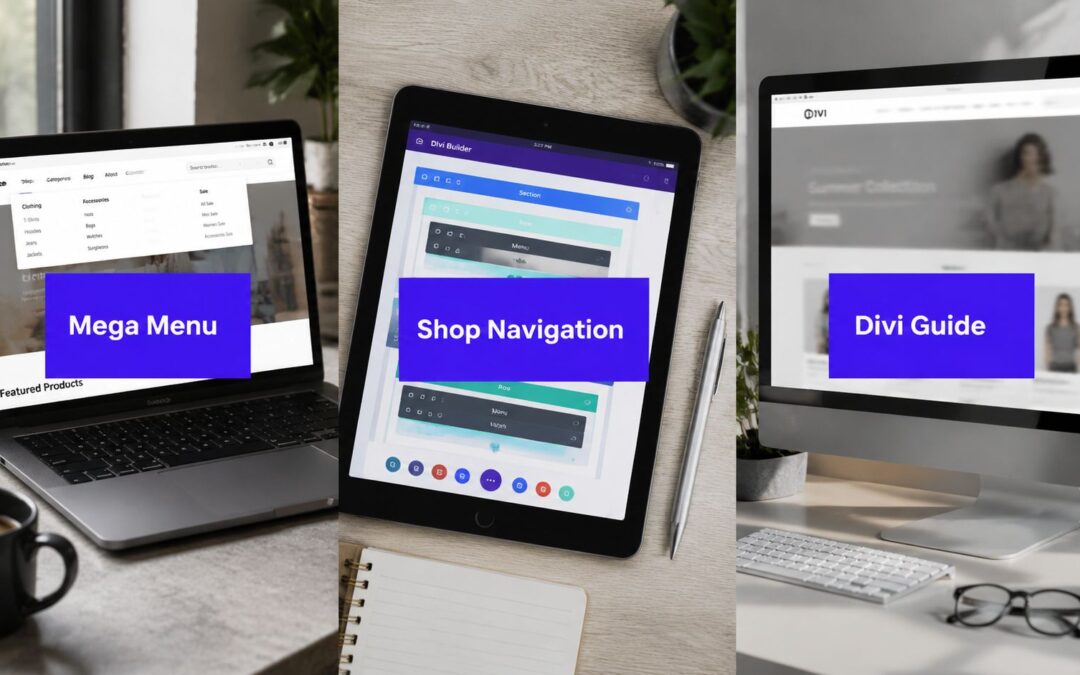
A visual example helps when you're refining spacing and content balance:
A simple layout formula that keeps working
If you want a repeatable pattern, this one is hard to beat:
| Column | Content | Why it works |
|---|---|---|
| Left | Category groups | Gives shoppers immediate direction |
| Middle | Small product set | Adds merchandising without overload |
| Right | Banner with CTA | Highlights a focused campaign or collection |
That formula works across a wide range of WooCommerce stores because it respects user intent. Some people want to browse structure. Some want a shortcut into products. Some respond to a curated feature. The panel supports all three without trying to do everything.
Integrating the Menu into Your Divi Header
The layout is only half the job. The menu has to open in the right place, trigger reliably, and feel connected to the header rather than pasted on top of it.
In WordPress, go to Appearance > Menus and locate the top-level item that should trigger the panel. For most stores, that's Shop, though category-specific panels can also work if the catalog is broad enough to justify them.
Attach the Area to the right menu item
Once the plugin is active, menu item settings include the extra controls needed to assign your Area. Select the Area you built, save the menu, and test it before touching any advanced styling.

If you're working with a custom header template, it helps to understand how the navigation sits inside the broader header structure. This guide to creating a global header with Divi is useful if your menu positioning issues are really header layout issues in disguise.
Choose hover or click based on the device reality
This decision affects usability more than most styling tweaks.
Hover feels fast on desktop. It works well when the top-level item is clearly meant to reveal more options and the panel doesn't disappear the second a cursor moves slightly off track. But hover can also be fragile if your spacing is tight or the panel opens with a delay that feels inconsistent.
Click is more deliberate. It reduces accidental openings and often feels better when the panel contains richer content like featured products or banners. It also maps more naturally to touch behavior, though you still shouldn't rely on the desktop mega menu as your mobile navigation pattern.
A practical rule:
- Use hover for desktop-first stores with straightforward category navigation
- Use click when the panel is content-heavy or users need a more stable interaction
If shoppers keep triggering the menu by accident while trying to reach another header link, the trigger choice is wrong, even if the design looks polished.
Check placement before styling edge cases
After assigning the Area, test these basics in a real browser:
- Alignment under the intended menu item
- Panel width relative to the header container
- Stacking order so the menu isn't hiding behind sliders, banners, or sticky elements
- Open and close behavior across repeated interactions
A mega menu that opens a few pixels off or sits behind another layer always feels broken, even when the content itself is good.
Default header and Theme Builder headers
The integration logic is similar whether you use the default Divi header or a custom Theme Builder header, but custom headers usually introduce more moving parts. Sticky headers, transformed rows, and custom z-index settings can all affect menu behavior.
When something feels inconsistent, don't assume the menu system is at fault. Check the header row settings, section overflow, and any custom CSS tied to sticky states first. In many cases, the panel is fine. The header container is what's causing the conflict.
Optimizing for Mobile Performance and Accessibility
A desktop mega menu can be useful. A mobile mega menu usually isn't.
That's the first hard truth to accept. Trying to squeeze a wide, content-rich desktop panel into a phone interaction almost always creates friction. The better move is to use the desktop mega menu where it makes sense and fall back to a simpler mobile navigation pattern on smaller screens.

Don't force the desktop experience onto mobile
Hide the mega menu on smaller devices and let Divi's native mobile menu do its job. This is cleaner, faster, and easier for customers to understand. Use responsive controls and display conditions so the heavier desktop panel only loads where it's helpful.
If your store's mobile experience needs a broader review, this complete guide for CPG mobile commerce is worth reading because it reinforces the same principle. Mobile users need direct, low-friction interactions, not compressed desktop ideas.
For Divi-specific implementation details, the guide to optimizing Divi for mobile devices complements this work well.
Performance problems usually come from content choices
When a mega menu slows down a WooCommerce store, the issue usually isn't the concept. It's what people stuff into it.
The main offenders are predictable:
- Oversized images pulled from homepage assets instead of menu-specific graphics
- Too many products loaded inside the panel
- Extra animations layered onto open states, hover effects, and image transitions
- Heavy modules used where simple text links would be better
A header interaction should feel immediate. If the panel hesitates, simplify before you optimize.
What to keep lightweight
Use this checklist during build reviews:
| Element | Better choice |
|---|---|
| Promotional image | Cropped menu-specific banner |
| Product display | Small curated set |
| Link groups | Plain text with clear spacing |
| Motion | Minimal transitions |
The header is the worst place to hide heavy assets because it appears on every page and affects every shopping session.
Accessibility isn't optional
A visually polished mega menu can still fail if keyboard users can't use it or if screen readers encounter a confusing structure. That's why the build needs semantic order and interaction testing, not just layout approval.
Check these basics:
- Keyboard access so users can tab into the top-level item and move through panel links
- Visible focus states that aren't removed for aesthetic reasons
- Logical heading order inside the menu panel
- Descriptive link labels instead of vague text like “Shop now” repeated multiple times
- Readable contrast between text, background, and hover states
Don't assume accessibility comes for free because the content was built in Divi. Test the interaction. Open the menu without a mouse. Move through it with a keyboard. If it's awkward for you, it's worse for everyone else.
The mobile-safe mindset
The best WooCommerce mega menus are selective. They appear where they help, disappear where they don't, and stay lean enough that they don't turn the header into a performance tax. If you keep that standard, the menu stays useful instead of becoming one more clever feature customers work around.
Troubleshooting and Advanced Customization Tips
Most mega menu problems come down to positioning, triggering, or cached output. The good news is that these are usually easy to isolate if you test one layer at a time.
Common problems and what usually fixes them
If the panel opens in the wrong place, check the header container before touching the menu itself. Sticky rows, transformed sections, and overflow settings often create alignment issues. A menu can't position cleanly inside a container that clips or offsets it.
If hover won't trigger reliably, the usual culprit is spacing between the menu item and the panel. Even a small gap can break the interaction. Tighten the vertical relationship so the cursor has a continuous path from trigger to panel.
If changes don't appear after editing, look at caching first. Header output is often heavily cached by performance tools, server layers, or browser cache. Clear those and retest in a private window before assuming the build is broken.
A quick diagnostic sequence
Use this order when debugging:
- Test on a clean browser session to rule out cached front-end output
- Disable custom CSS temporarily if the panel behaves strangely
- Inspect the header structure for overflow, z-index, and sticky-state conflicts
- Switch trigger behavior to confirm whether the issue is interaction-specific
- Reduce panel content if the problem only appears when product modules load
That sequence saves time because it starts with the highest-probability failures.
When a mega menu breaks, simplify first. A lean panel is easier to debug than a fully styled merchandising block with multiple moving parts.
Useful upgrades after the basics work
Once the menu is stable, dynamic content can make it easier to maintain. Instead of manually updating every text block, you can pull content into parts of the panel where that makes sense. This works well for reusable promotional areas or store messaging that changes by context.
Conditional logic is where things get more interesting. If your store serves wholesale buyers, members, or logged-in customers with different needs, you can show a different menu experience to different audiences. That can mean changing featured links, swapping the promotional panel, or hiding consumer-facing offers from role-specific users.
Use that power carefully. Personalization helps when it removes irrelevant options. It hurts when it makes navigation feel inconsistent across sessions or devices.
A great mega menu for WooCommerce doesn't need to be clever. It needs to be clear, fast, and easy to manage after launch.
If you want a cleaner way to build advanced mega menus, popups, and dynamic content inside the Divi Builder, Divimode is worth a look. It's built for teams who want more control without turning routine site features into custom development work.
More Articles You Will Like