
 Alex Martin
Putting a video in a popup is a slick move. You're taking the instant attention of a popup and pairing it with the deep engagement you only get from video. This dynamic duo lets you drop compelling messages—like product demos or customer testimonials—right when it matters most, giving your conversions a serious boost.
Why a Video Popup Is Your Conversion Power Play
Before we get into the nuts and bolts of setting it up, let's talk about why this tactic is so effective. A standard popup might grab a user's attention for a second, but a video actually holds it. By embedding a video, you're turning a simple interruption into an experience that delivers real value, builds trust, and helps visitors get over the finish line.

This whole approach taps right into how our brains work. We process video 60,000 times faster than text, making it the perfect way to communicate complex ideas or create an emotional connection in just a few seconds.
The Strategic Advantage of Visual Storytelling
Let me paint a picture for you with a few real-world scenarios where a video popup can completely change the game:
- E-commerce Product Demos: Imagine a visitor is on a product page, clearly on the fence. Just as they go to leave, an exit-intent popup appears with a quick 30-second video showing the product in action. That visual proof is often the final nudge they need to click "Add to Cart."
- Consultant Testimonials: A potential client is checking out your services. As they scroll down the page, a popup slides in with a powerful video testimonial from a happy customer. This builds instant social proof and credibility, making them far more likely to book that initial call.
- SaaS Onboarding: A new user logs into your platform for the first time. A friendly welcome popup greets them with a short "getting started" video, walking them through the first few critical steps. This simple touch can dramatically reduce friction and improve user retention from day one.
A well-timed video popup does more than just throw information at people; it creates a genuine connection. It lets you show your value, prove your authenticity, and guide users much more effectively than static text or images ever could.
Let's quickly compare the impact of adding video to your popups. The difference is pretty stark.
Video Popup vs Standard Popup Performance
| Metric | Standard Text/Image Popup | Video-Enhanced Popup |
|---|---|---|
| User Engagement | Moderate attention, quick dismissal | Higher dwell time, active viewing |
| Message Clarity | Relies on user reading and interpretation | Conveys complex ideas quickly and emotionally |
| Conversion Rate | Good (Avg. ~3.5%) | Excellent (Often 10-15%+) |
| Trust Building | Relies on brand authority and copy | Builds personal connection through faces and stories |
As you can see, integrating video isn't just a minor tweak; it's a fundamental upgrade to how you communicate.
Backed by Data
The numbers don't lie. Data from over 10,000 campaigns shows the average popup converts at a respectable 3.49%. But here’s where it gets interesting: top-performing popups, especially those using video testimonials, consistently hit conversion rates well over the 10-15% mark.
This kind of performance lift is a cornerstone of any solid CRO strategy. If you're serious about getting better results from your site, our conversion rate optimization checklist offers a structured way to make it happen. And to really dig into how popups can drive sales, check out The Ultimate Guide to Using a Web Site Pop Up for Revenue Growth.
Alright, let's roll up our sleeves and build your first video popup using the powerful combo of Divi and Divi Areas Pro. The whole process is surprisingly straightforward, and the best part is you get to do it all inside the Divi Builder you already know and love. We'll start from square one, assuming you've got the plugin installed and ready to go.
The core idea is pretty simple. You'll create a new "Area" which is basically your popup's canvas. From there, you just design its content—in this case, dropping in a video module—exactly like you would on any other Divi page. Once it looks good, you can set it to pop up anywhere on your site.
Creating Your Popup Area
First things first, head over to your WordPress dashboard and look for the Divi Areas menu item. This is where all the magic happens. Click "Add New" to get a fresh Area, which will serve as the container for your popup.
It's a good habit to give it a descriptive name you'll recognize later, something like "Product Demo Video Popup."
Once you've named it, you'll be dropped right into the Divi Builder. This is your blank canvas. Feel free to add sections, rows, and any Divi modules you need to style the popup. For our purpose, the star of the show is, of course, the Video module.
Here’s a quick look at the Divi Areas Pro interface. This is your central hub for managing all your popups and other dynamic content.
As you can see, this dashboard gives you a clean overview of all your Areas, making it a breeze to jump in and edit, duplicate, or just check the status of each one.
Embedding Your Video
With your Area ready, add a new row and insert Divi’s native Video module. This is where you'll link up your video, and you've got three main ways to do it, each with its own pros and cons.
- YouTube: This is the go-to for most people. Just paste the video URL and you’re done. It's fantastic for performance since you're letting Google's servers do the heavy lifting.
- Vimeo: A great choice if you want more control over branding and privacy. Vimeo’s player is cleaner and won't suggest a competitor's cat video when yours is finished playing.
- Self-Hosted: Uploading an MP4 file directly to your WordPress Media Library gives you total control. Be careful with this one, though. It can seriously weigh down your server and slow your site, so only use this option with highly optimized, smaller video files.
Pro Tip: If you're using YouTube, try adding
?rel=0&modestbranding=1to the end of the URL in the Divi module. This handy little snippet stops related videos from appearing at the end and tones down the YouTube branding, keeping the focus right where it should be—on your content.
After you've placed your video, you can use the Divi Builder’s design settings to style everything around it. Maybe add a punchy headline, some descriptive text, or even a call-to-action button underneath. This entire section is what your visitors will see when the popup appears. For a deeper dive into some related techniques, check out our guide on adding a video in a lightbox with Divi.
Fine-Tuning the Popup Behavior
Now that the content is designed, it's time to dial in how the popup actually behaves. In the Divi Area editor, you'll find a whole suite of settings to control the popup's size, position, and background overlay.
- Popup Width: You'll want to adjust this to make sure your video is front-and-center but doesn't completely take over the screen.
- Position: You can have it appear dead center (the classic modal) or have it slide in from a corner for a more subtle effect.
- Overlay: Customize the background that appears behind the popup. You can go for a semi-transparent color that dims the page content or a solid color that blocks it out entirely.
- Close Button: Style the close button's look and placement to make it obvious and easy for users to click.
Getting these settings right is what separates a professional, user-friendly popup from a disruptive ad. When you nail the details, the popup feels like a natural part of the website experience. With these steps done, your first Divi video popup is designed and ready for triggers and targeting
Choosing the Right Trigger for Maximum Impact
A killer video popup is only half the equation. The real magic happens when you show it at the perfect moment. Get the timing right, and the interaction feels helpful and engaging. Get it wrong, and it’s just another annoying ad.
This is where Divi Areas Pro’s trigger settings become your secret weapon. Timing is everything. You need to sync your video’s message with what the user is thinking and doing on their journey through your site. It’s like joining a conversation at just the right time instead of shouting from across the room.
Matching Triggers to User Intent
Let's dig into the most effective triggers and the real-world scenarios where they actually work. Each one has a specific job, turning a generic popup into a personalized experience that gets results.
- Exit-Intent Trigger: This is your last shot to win someone over. When a visitor's cursor heads for the exit, you can pop up a powerful testimonial video. It’s a fantastic move for catching shoppers who are about to abandon their cart or giving hesitant leads that final nudge by showing them exactly what they’ll miss out on.
- Scroll-Depth Trigger: If someone has scrolled 70% down a long blog post, they're clearly hooked. That’s the ideal time to present a related tutorial or an expert deep-dive video. You're not interrupting; you're rewarding their interest with even more value.
- Time-Delay Trigger: Sometimes, people just need a second to get their bearings. A popup that appears after 15-20 seconds is perfect for introducing a welcome video from the founder on your homepage. It helps build an immediate personal connection without being pushy the moment they land.
Before you even get to triggers, picking the right video source is a critical first step. This flowchart breaks down the decision-making process.
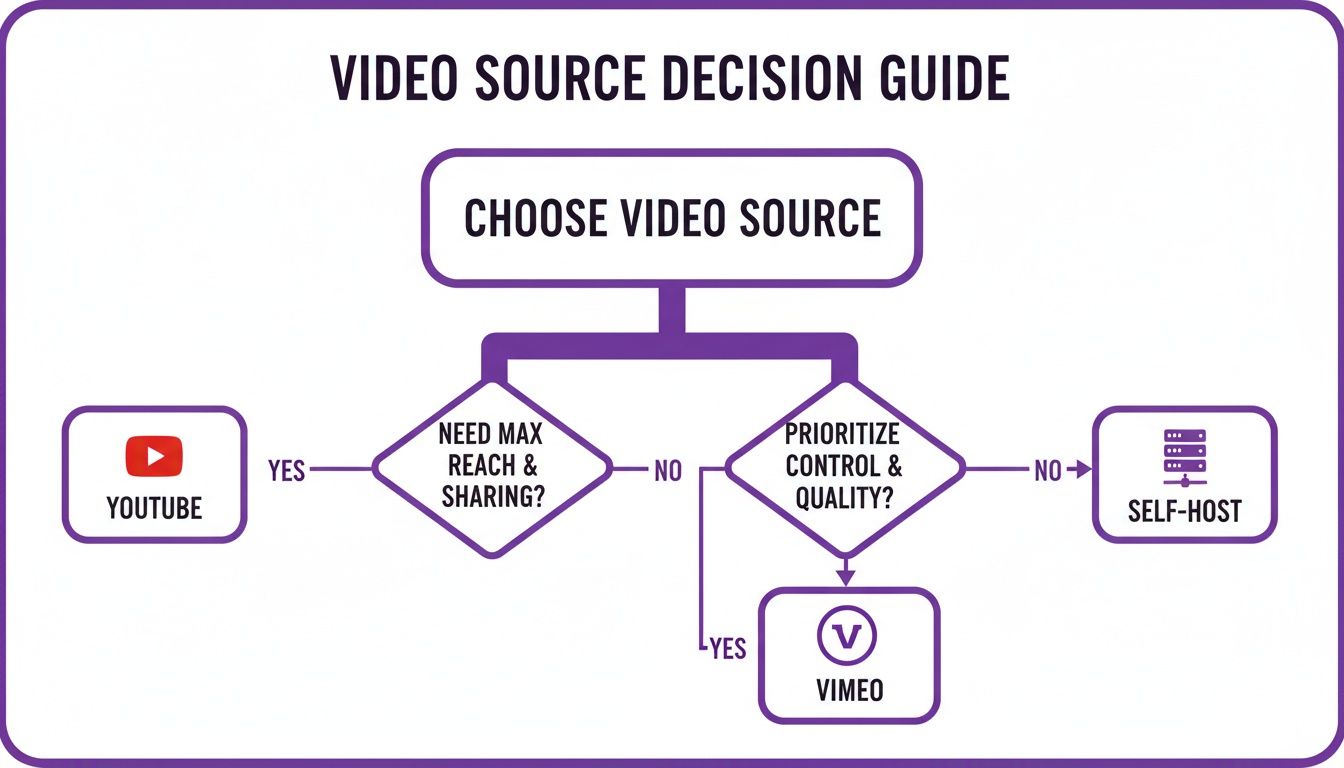
As you can see, the choice really hinges on your goals. Are you aiming for maximum reach with YouTube, professional polish with Vimeo, or total control with a self-hosted solution?
The Power of the Click Trigger
While automatic triggers have their place, the Click Trigger is in another league entirely. This approach is all about the user taking action—they have to click a button, an image, or a link to launch the video popup. It’s a consent-based interaction, and that changes everything.
Think about putting a "Watch Demo" button on a product page. When a user clicks it, they are explicitly asking for more information. They've raised their hand. That makes them an incredibly qualified and receptive viewer.
When a user initiates the action, they are already sold on the idea of watching your video. This is why click-triggered popups have the highest engagement and conversion rates—the user has already said "yes" before the popup even appears.
The numbers back this up in a big way. We’ve seen that click-triggered popups with an embedded video in popup can hit conversion rates of 22.65%. That figure absolutely dwarfs other trigger types, like on-landing popups (4.37%) or even exit-intent (1.96%). It all comes down to user intent. You can dive deeper into these popup statistics to see just how much of a difference this makes.
At the end of the day, the right trigger transforms your video from an interruption into a welcome resource. Go ahead and experiment with these options in Divi Areas Pro to find the perfect mix that connects with your audience and smashes your goals.
Fine-Tuning Your Approach: Advanced Targeting and Design
Once your triggers are in place, it’s time to get strategic. This is where we go beyond basic popups and start crafting experiences that feel less like a generic ad and more like a genuinely helpful, personalized interaction. With Divi Areas Pro, you can use a whole suite of targeting rules to control exactly who sees your video popup and when.
Think about it: you could show a special offer video only to logged-in customers, or display a slick vertical video that’s perfectly formatted for mobile users. This kind of precision is what separates a popup that gets ignored from one that gets results.
You can even layer these rules to create hyper-specific audience segments. For instance, you could show a "getting started" tutorial exclusively to new users who clicked a specific campaign link on their very first visit. That’s the kind of smart targeting that makes a real difference.
Granular User Targeting
Let's dig into some of the most powerful targeting options in Divi Areas Pro and see how they can work for a video popup.
- By User Role: This is a goldmine for membership sites or WooCommerce stores. You could display an instructional video just for "Subscribers," or maybe show an exclusive behind-the-scenes clip to "Customers" who’ve already made a purchase. It’s a great way to reward loyalty and deliver truly relevant content.
- By Device Type: Let's face it, the mobile and desktop experiences are worlds apart. This rule lets you show a standard landscape video on desktops while triggering a completely different, vertically-shot video popup on mobile. This simple switch ensures an optimal viewing experience, no matter the screen.
- By Referrer URL: Ever wanted to tailor your message based on where a visitor came from? This rule makes it happen. If someone lands on your site from an affiliate link or a specific social media campaign, you can greet them with a personalized video that acknowledges their journey.
Using these targeting rules transforms your video in popup from a one-size-fits-all message into a dynamic, context-aware tool that resonates with your audience.
Choosing the Right Popup Design
Beyond who sees your popup, how it appears plays a huge role in its reception. The design you choose should match the video's importance and the user experience you want to create. Each style has a different strategic purpose.
A popup’s design isn’t just about making it look good; it’s about controlling user focus. A fullscreen popup demands attention for a major announcement, while a subtle slide-in respects the user's browsing flow, making it ideal for secondary content recommendations.
Let's break down the most common formats:
| Popup Type | Best Use Case | User Experience Impact |
|---|---|---|
| Fullscreen | Major announcements, critical offers, welcome videos | High-impact, demands immediate attention. |
| Modal | Lead magnets, product demos, testimonials | Focused, dims the background to reduce distraction. |
| Slide-in | Related content, quick tips, non-urgent notices | Subtle, less intrusive, appears in the corner. |
Interestingly, when it comes to capturing leads, sometimes the boldest approach is the best one. Research shows that fullscreen video popups achieve the highest signup rates at 3.41%, narrowly beating out modals (2.95%) and slide-ins (2.17%). They are especially dominant on mobile, where their conversion rate jumps to a massive 6.57%. You can discover more insights about website popup statistics on GetSiteControl.com.
Ultimately, the best design comes down to your goal. By combining precise targeting with a thoughtful design, you make sure your video popup is not only seen by the right people but also presented in the most effective way possible.
Optimizing for Performance and Accessibility
A slick video popup is fantastic, but not if it grinds your site to a halt. A slow, clunky experience is a surefire way to frustrate visitors and take a hit on your SEO rankings. That’s why optimizing for speed and making your content accessible to everyone aren't just suggestions—they're essential.
The number one performance killer? Loading a heavy video file right when the page loads. This can wreck your Core Web Vitals, especially the Largest Contentful Paint (LCP). The fix is actually pretty simple: make sure your video is lazy-loaded.
Protecting Your Site Speed
Lazy loading is a smart technique that waits to load non-critical resources—like your video—until they’re actually needed. Divi Areas Pro handles this beautifully, ensuring the video only loads when a visitor triggers the popup, not during the initial page load.
Another great trick is to use a lightweight thumbnail image as a placeholder. The full video player and all its hefty assets only get loaded once a user actually clicks the play button. This simple move dramatically cuts down the initial page weight, keeping everything snappy and responsive.
Here are a few quick wins for better performance:
- Compress Your Video: Before you even think about uploading, run your video file through a compression tool. You can slash the file size and cut down load times without any noticeable drop in quality.
- Avoid Autoplay: It might seem tempting, but autoplaying video is a huge resource hog. Plus, it’s a big accessibility no-go and many browsers will block it anyway.
- Leverage External Hosting: Using platforms like YouTube or Vimeo is a no-brainer. You offload all the bandwidth demands from your own server and let their massive infrastructure handle the heavy lifting.
Performance and accessibility aren't just technical checkboxes; they're the bedrock of a good user experience. A fast, inclusive website shows respect for your visitors' time and needs. That's how you build trust and, ultimately, drive conversions.
Making Your Video Accessible to Everyone
Beyond just speed, true optimization means everyone can use your content, including visitors with disabilities. An inaccessible popup is more than a missed opportunity; it can completely alienate a huge chunk of your audience.
Let's start with the basics. Every control in your popup, from the play button to the close icon, needs to be fully navigable with just a keyboard. People who can't use a mouse rely on the "Tab" key to get around, and your popup has to play nice.
To make sure your video reaches the widest audience possible—including those with hearing impairments or anyone in a noisy environment—you absolutely need to provide captions. A great way to get this done is to transcribe video using a Speech-to-Text API, which can make generating accurate captions a whole lot easier.
Finally, you'll want to use proper ARIA (Accessible Rich Internet Applications) attributes in your popup's HTML. This gives screen readers the context they need to help visually impaired users understand what the popup is and how to interact with it. If you're new to this, diving into some website accessibility best practices will give you a solid foundation for making your entire site more inclusive.
Have Questions About Divi Video Popups?
Even when you have a clear plan, a few questions are bound to pop up. Let's run through some of the most common ones I hear when people start using videos in their Divi popups. My goal here is to help you move forward with total confidence.
Will a Video in a Popup Tank My Website Speed?
Not if you do it right. This is probably the biggest concern I see, and it’s a valid one. Nobody wants to ruin their page load times.
The key is that plugins like Divi Areas Pro use lazy loading right out of the box. This means the video—and all its heavy resources—only starts to load when a visitor actually triggers the popup. It’s not bogging down the initial page load at all.
This simple, built-in technique keeps your initial page weight light and your Core Web Vitals in a good spot. When you combine that with embedding from a performance-focused platform like YouTube or Vimeo, you pretty much sidestep any major performance hit.
What’s the Best Kind of Video to Use?
This one’s less about a technical answer and more about your specific goal. There’s no single "best" video, just the right tool for the job. From what I’ve seen work for my clients, it usually boils down to this:
- Selling products? Go for a quick product demo or a powerful customer testimonial. Seeing is believing, and these build trust fast.
- Generating leads? A short, sharp explainer video that nails the value of your offer is perfect. You want to make signing up a no-brainer.
- Building a brand? Try a personal welcome message from the founder. It can forge an instant connection that text and images just can't match.
The golden rule? Keep it brief and get straight to the point. Aim for under 60 seconds, and make those first few moments absolutely magnetic. You have to give people a reason not to immediately hunt for that close button.
How Do I Make My Video Popup Mobile-Friendly?
You don't just "make it" mobile-friendly—you have to. It's completely non-negotiable today, with more than half of all web traffic coming from phones.
The good news is Divi’s built-in responsive controls are your best friend here. Hop into tablet and mobile view to adjust the popup’s layout and video size until it looks just right.
For the best possible experience, I sometimes even use a vertical video format that feels native to mobile screens. Divi Areas Pro actually lets you take this a step further by using device targeting. You can create a completely separate, mobile-optimized video in popup that only shows to mobile users. It’s the ultimate way to get total control over the experience on any screen.
Ready to create high-converting video popups with unmatched control and flexibility? Divimode's Divi Areas Pro is the ultimate tool for Divi users. Start building smarter popups today.
More Articles You Will Like




