 Alex Martin
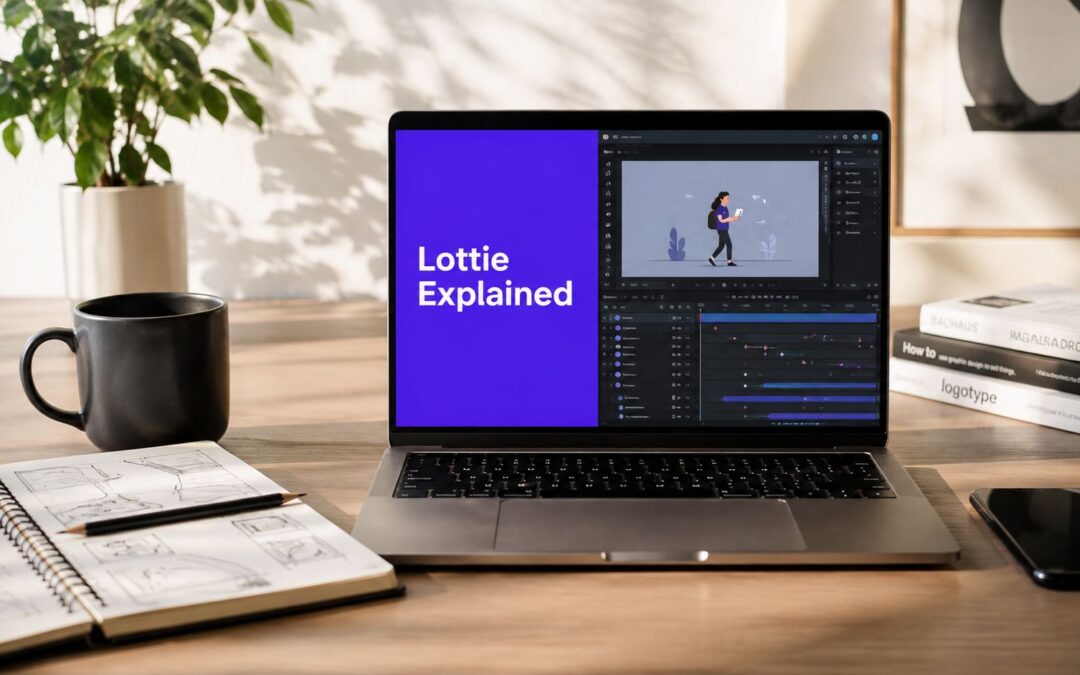
Lottie is an open-source JSON-based animation format created by Airbnb that encodes vector animation instructions rather than frame-by-frame pixels, which is why it stays lightweight, scalable, and interactive on web and mobile. If you've ever tried to make a Divi page feel alive without wrecking load times or sharpness, Lottie is probably the tool you were looking for.
You might be staring at a landing page that needs a little motion, maybe a hover effect, a loading state, or a popup that feels less static. A GIF looks soft at larger sizes, a video background can drag, and custom animation code often feels like a separate project from the rest of your Divi build. That's where the question what does Lottie mean becomes practical, not academic.
The Animation Problem Every Divi Designer Hits
A Divi designer usually meets this problem the same way: the layout looks clean, but it still feels flat. You want a bit of movement to guide the eye, maybe a looping icon in a hero area or a playful state change in a popup, and the first instinct is often to reach for a GIF.
That works until the design needs to scale. On a retina display, GIFs can look rough, and if you push them too large, they start to feel like a compromise instead of a feature. Video has the opposite problem, it can look polished, but the file weight and playback overhead make it hard to justify for a tiny decorative motion.
Lottie sits in the gap between those two tools. It gives you motion that behaves more like a real interface asset and less like a flattened media file, which is why it's become so useful in modern Divi workflows. If you've ever built a hover interaction and wished the motion could stay crisp without forcing the whole page to pay the price, you've already identified the use case.

For designers who like practical references, this often shows up in the same places as interactive content and subtle motion systems. Divi users who are already experimenting with hover states can compare that workflow with Divi hover effects, since both are about making a layout respond instead of just sit there.
Practical rule: if the motion has to stay crisp at many sizes, and it needs to feel native inside a Divi layout, Lottie is often the first format worth testing.
What Lottie Actually Is and How It Works
Lottie is easiest to understand if you stop thinking of it as a video file. A video records every frame as pixels, while Lottie stores the instructions that describe the motion, then lets the browser or app render those instructions at runtime. That makes it closer to sheet music than a recording, because the instructions are compact and the playback engine interprets them on the fly.
That distinction matters in Divi because design teams usually care about both visual quality and page behavior. Lottie uses vector-based animation instructions, so the same asset can scale cleanly across different screen sizes without the softness you get from bitmap-based media. The rendering engine interprets the shapes, paths, keyframes, easing curves, timing, and layer structure in real time, which is why Lottie can be used for UI micro-interactions, loading states, icons, and onboarding-style motion. For a technical overview of that runtime model, see the Lottie animation guide.
Why that structure matters in real projects
The major benefit is not just visual sharpness, it's flexibility. A Lottie file can be dropped into a responsive layout and still hold its shape when the viewport changes, which is exactly what you want when a Divi section has to work on desktop, tablet, and mobile without separate assets for each one.
There's also a delivery advantage. Lottie is typically much lighter than equivalent GIF or video motion graphics because it stores instructions instead of bitmap frames, and that keeps the transfer size down while preserving responsiveness on web and mobile. The trade-off is that the browser has to render it live, so complexity still matters, especially when a composition includes lots of layers or detailed vector paths. The performance side of that trade-off is discussed in more detail later, but the core idea is simple, you're trading file bulk for rendering work.
A useful mental model is this, if the motion needs to behave like a design system component, Lottie fits naturally. If it needs to behave like footage, it probably doesn't.
How Lottie Animations Are Created
A Lottie animation usually starts in Adobe After Effects, where a designer builds the motion as shapes, timing, and transitions rather than pixels. The key step is export, because the Bodymovin plugin translates the After Effects composition into JSON that the Lottie player can understand.
That export step is the bridge. Instead of flattening the animation into a movie file, Bodymovin preserves the structure that matters for playback, including shapes, paths, keyframes, easing, and layer information. The browser then renders those instructions at runtime, which is why a designer can create the motion without writing JavaScript from scratch.

The workflow usually feels like this:
- Concept and sketch. The motion gets planned as an interaction or visual accent before any keyframes are built.
- Animate in After Effects. The designer creates the actual movement, timing, and easing.
- Export through Bodymovin. The plugin turns the composition into JSON rather than a video file.
- Use the JSON in the site or app. The player interprets the instructions and draws the motion on screen.
What separates a clean export from a messy one
The difference usually comes down to composition discipline. A well-optimized Lottie animation keeps the art vector-based, avoids unnecessary layering, and stays within the limits of what the runtime can draw efficiently. A poorly optimized one tries to force heavy effects, raster images, or too many simultaneous elements into a format that's meant to stay lean.
That's the part people miss when they first ask what does Lottie mean. The format itself is efficient, but the asset still needs thoughtful production. If the motion looks great in After Effects and becomes sluggish when exported, the problem is usually the composition, not the idea.
Keep the motion simple enough that the browser can redraw it comfortably. Lottie rewards restraint.
Adding Lottie Animations to Your Divi Website
In Divi, Lottie usually enters the build through a plugin or widget that places the JSON animation inside the Builder like any other module. The practical flow is straightforward, upload the JSON to your media library, insert it into the Lottie widget or module, then choose how it behaves, such as autoplay, loop, speed, or progress control.
If you're already using Divi Areas Pro or Popups for Divi, Lottie becomes more interesting because it can serve as the motion layer inside a fly-in, popup, tooltip, or injected content block. That means the animation doesn't have to live only in a hero section. It can appear when a visitor scrolls, triggers exit intent, or lands on a specific page template. For more on that kind of setup, Divimode's guide to interactive content on your Divi website is a useful companion read.
Where Lottie fits in a Divi workflow
A practical Divi setup usually looks like this:
- Upload the JSON file. Keep the asset organized in the media library so the path stays stable.
- Insert it with the plugin's Lottie module or widget. This avoids custom code for most use cases.
- Set playback behavior. Decide whether it should autoplay, loop, pause on hover, or wait for a trigger.
- Place it in a responsive container. This keeps the animation aligned with the rest of the layout.
The main advantage here is that you can treat motion like a normal design asset instead of a special case. That's particularly helpful when a client wants one animation reused in multiple places across a site, because you're dealing with a single JSON file rather than a stack of duplicated media.
For teams working across different site types, it helps to think about the animation as reusable interface content, not decoration. If you also manage structured storefront or catalog layouts, a resource like DPP Shopify can be useful when you're comparing how motion and product presentation support each other in different platforms.
Performance and Accessibility Considerations
Lottie's biggest strength can also create the wrong expectation. Because the file is small, people assume it's automatically cheap to run. It isn't. The browser still has to render the motion in real time, and that shifts some of the work from download size to client-side graphics processing, which can be a problem on older devices or on pages that already have a lot going on.
The performance trade-off
A lightweight JSON file can still ask a lot of the device if the composition is overly detailed. Several animations running at once, especially in view on the same screen, can make a page feel less responsive even when the assets themselves are compact. The safest habit is to use Lottie where the motion adds meaning, not everywhere motion is possible.
Practical rule: load animations only when visitors can actually see them, and keep the number of active motions low on a single page.
That's why many Divi developers lazy load Lottie assets, avoid unnecessary autoplay on mobile, and keep the animation timeline simple. If you're tuning a site for speed, Divi speed optimization guidance is worth pairing with any motion-heavy page build. The point isn't to ban animation, it's to make sure the animation doesn't compete with the page.
Accessibility matters too
Lottie is also easy to misuse from an accessibility standpoint. Screen readers don't automatically understand a decorative animation, and keyboard users need to know whether a motion element is interactive or decorative. That means you should provide clear text alternatives when the motion communicates something important, and mark purely decorative motion so assistive tech doesn't treat it like missing content.
A simple rule works well in practice, if the animation carries meaning, describe that meaning in text nearby. If it's decorative, keep it out of the accessibility tree and make sure it doesn't trap focus or create confusion for keyboard navigation.
Lottie vs GIF vs Video for Web Animation
| Format | File Size | Scalability | Interactivity | Accessibility |
|---|---|---|---|---|
| Lottie | Usually compact because it stores instructions rather than frame images | Clean at many sizes because it is vector-based | Can respond to runtime events and controls | Needs deliberate labeling and fallback text |
| GIF | Often heavier for the same motion | Can soften or pixelate when enlarged | Limited | Weak by default for assistive tech |
| Video | Can be efficient for long motion, but often larger for short UI animation | Good when played at native size, less flexible when repurposed | Limited for UI states | Can be accessible with captions and careful treatment |
That table is the decision tool. Use Lottie when you want crisp interface motion, use GIF when you need broad compatibility with no special behavior, and use video when the motion is closer to footage than to interface design.
Common Lottie Problems and How to Fix Them
Most Lottie issues in Divi aren't mysterious. They usually come from the file, the wrapper, or the way the animation is triggered.
The usual failure points
If an animation doesn't load, the first suspects are a bad JSON path or a plugin conflict. If it plays too fast or too slow, the playback speed or timeline settings are usually off. If it breaks on mobile, autoplay behavior or device throttling may be getting in the way.
Pixelation usually points to the source composition, not the Lottie player. If the After Effects file includes raster images instead of vector shapes, the export can lose the crispness you expected. Layout shifts tend to come from missing width and height handling in the wrapper, which causes the animation area to jump as the page calculates space.
A practical troubleshooting sequence works better than guessing:
- Check the file path first. If the JSON can't be found, nothing else matters.
- Inspect the source composition. Replace raster elements with vector shapes where possible.
- Review playback settings. Speed, loop, and autoplay settings can make a good asset feel wrong.
- Test on mobile early. A motion that feels fine on desktop can behave differently on smaller devices.
- Reserve space for the animation. Preventing layout shift is easier than correcting it later.
The main takeaway is simple. Lottie gives Divi designers a way to add polished motion without the baggage of heavier media formats, but it still needs thoughtful setup. When you match the format to the job, keep the animation lean, and respect performance and accessibility, it becomes one of the cleanest ways to bring a page to life.
If you're building Divi sites and want help using motion without slowing everything down, explore the tools and tutorials at Divimode. Divi Areas Pro and Popups for Divi both fit naturally into Lottie-based workflows, especially when you're adding animations to interactive sections, fly-ins, or trigger-based content.
More Articles You Will Like