
 Alex Martin
The Divi Theme Builder is where you go from being an interior decorator to a full-blown architect for your website. It’s a powerful feature inside Divi that lets you design and control your entire website's structure—not just the content you drop onto individual pages.
What Is the Divi Theme Builder Anyway?
Think of a standard website as a pre-built house. With the regular Divi Builder, you can go into any room, paint the walls, hang pictures, and arrange the furniture. You’re working inside the existing rooms. This is what you do when you design the content of a specific page or post.
The Divi Theme Builder, on the other hand, hands you the architectural blueprints for the entire house.
Suddenly, you're not just decorating a room; you're deciding where the walls, doors, and windows go. You get to design the parts of your site that frame the content—like custom headers, footers, blog post layouts, and archive pages. These templates can apply to your entire site or just specific sections, giving you a consistent, polished look everywhere without touching a single line of code.
To get the most out of this, it helps to have a general idea of how WordPress works. A good primer on Understanding Content Management Systems can provide that foundational knowledge, as Divi is a powerful tool built on top of that framework.
Divi Builder vs. Divi Theme Builder
To really unlock Divi's potential, you have to get the difference between the standard Divi Builder and the Divi Theme Builder. They aren't the same tool, but they work together perfectly to give you total design control.
- The Divi Builder is for the content within a page or a post. It’s what you use to add text, images, sliders, and other modules to create the layout for a specific URL. If you need a refresher, we cover the core capabilities in our detailed guide on the page builder for Divi.
- The Divi Theme Builder designs the template that wraps around your content. This includes global elements like your header and footer, plus the structure for your blog posts, search results pages, and even your 404 error page.
This powerful combination is a huge reason Divi has exploded in popularity since its 2013 launch. Today, it’s estimated that around 10% of all WordPress websites run on Divi, with over 325,000 active sites in the U.S. alone. You can dig into more stats about WordPress market share on goodfirms.co.
To make it even clearer, let's break down their roles side-by-side.
Divi Builder vs Divi Theme Builder At a Glance
This table should help clear up any confusion about what tool to use and when. Think of it this way: one handles the "what" (your content), and the other handles the "where" (the site-wide structure it lives in).
| Feature | Divi Builder (Page/Post Content) | Divi Theme Builder (Site-wide Templates) |
|---|---|---|
| Primary Use | Designing the unique content of a single page or post. | Creating global headers, footers, and layout templates. |
| Scope | Local: Affects only the specific page/post being edited. | Global: Applies templates across multiple pages, posts, or the entire site. |
| Common Elements | Text, images, contact forms, sliders, testimonials. | Site header with logo/menu, site footer with widgets, blog post layout. |
| Where to Access | The "Edit with Divi" button on any page or post. | The "Theme Builder" link in the main Divi menu in your dashboard. |
| Example | Building the "About Us" page with team photos and bios. | Designing a custom blog post template with a specific featured image style. |
In short, you use the standard Divi Builder for one-off page designs and the Theme Builder to create the consistent shell that holds everything together. Mastering both is the key to building truly custom, professional websites with Divi.
Understanding Your Core Creative Tools
To really get the most out of the Divi Theme Builder, you first need to get familiar with its three core building blocks. Think of them as your primary toolkit. Once you get how Templates, Assignments, and Dynamic Content all play together, you'll unlock total control over your website's design.
Let's dive into the most important concept first.
Templates: The Master Blueprints
A Template in the Divi Theme Builder is essentially a master blueprint for a specific part of your website. The big shift here is that you're not just designing a single page anymore; you're creating a reusable layout that can define the structure for hundreds of pages all at once.
For example, you could whip up a template for all your blog posts. This one design will control how the featured image, title, and content show up on every single article you publish. This guarantees a consistent, professional look across your entire blog without touching each post individually.
This diagram shows how the Divi Theme Builder sits at the center of your site's architecture. It connects to global pieces like your header and footer while managing all the different templates that give your site its structure.
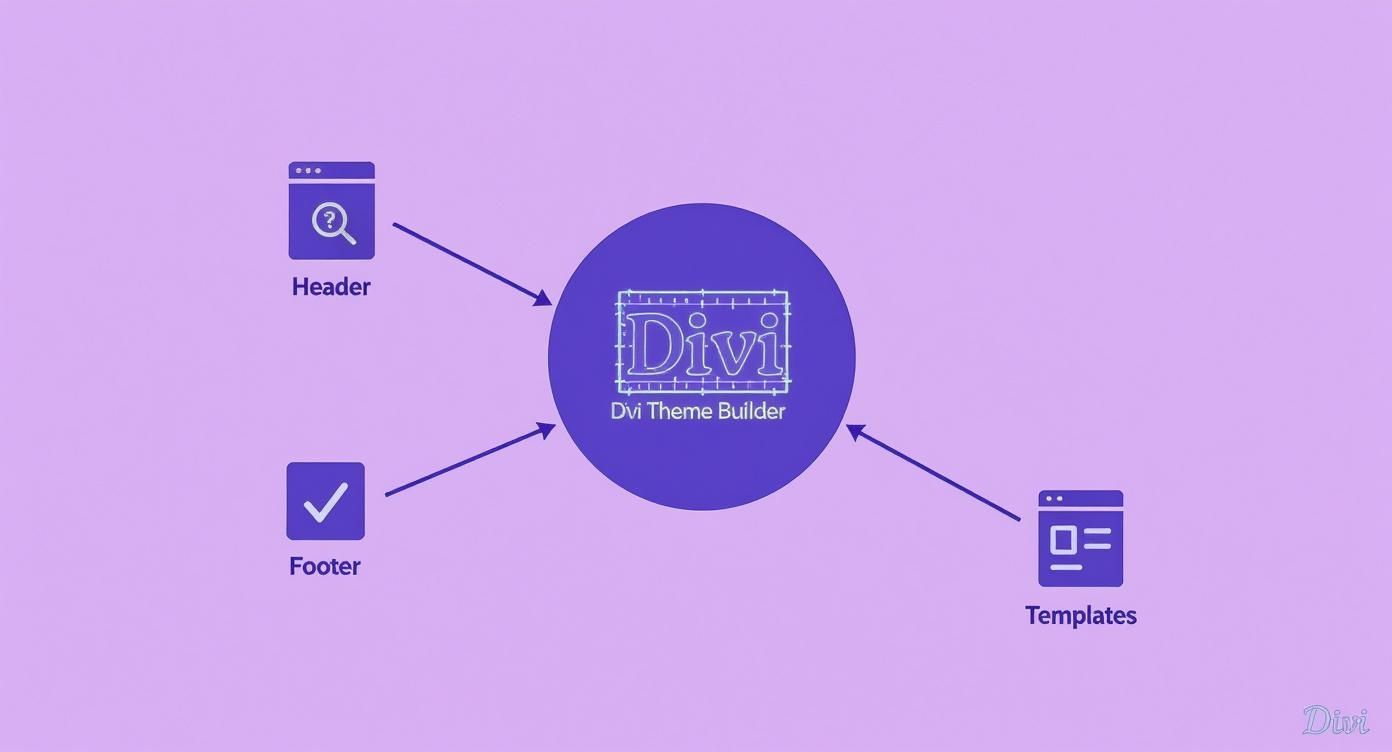
This really drives home the idea that every part of your site's frame can be controlled by a dedicated template. It's a move away from page-by-page design toward a smarter, site-wide system. But a blueprint is only useful if you know where to build.
Assignments: Directing Your Designs
That's where Assignments come in. An assignment is just a rule you set to tell Divi where a specific template should be used. It's how you connect your blueprint to the correct real estate on your website.
You could assign your custom blog post template to "All Posts," and like magic, every article on your site instantly adopts the new layout. But you can get way more granular than that.
- Category-Specific Designs: Want a different look for your "Case Studies" category versus your "News" updates? Create a unique template for each and assign them accordingly.
- Page-Specific Layouts: You can assign a special template just for your 404 error page or your search results page.
- User-Specific Views: With more advanced rules, you could even show a different header template to logged-in users compared to first-time visitors.
This level of control is what makes the Theme Builder such a beast for crafting unique user experiences.
Key Takeaway: Templates are the "what" (your design), and Assignments are the "where" (the pages it applies to). Mastering this relationship is the secret to building websites efficiently with Divi.
Now, let's talk about the final piece of the puzzle that makes your templates come alive.
Dynamic Content: The Magic Ingredient
Dynamic Content is the magic that breathes life into your templates automatically. If you’ve ever used mail merge, it's a lot like that, but for your website. You design a layout just once, and Divi automatically pulls in the right information for each specific page or post.
When you're building that blog post template, for instance, you don't actually type out a title. Instead, you drop in a "Post Title" module. This module is just a dynamic placeholder. When someone visits a specific blog post, Divi instantly swaps that placeholder with the actual title of that article.
Some of the most common dynamic content elements you'll use are:
- Post Title
- Featured Image
- Publish Date
- Author Name
- Post Content
- Comments Section
By leaning on these dynamic placeholders, you can design a single template that works perfectly for every blog post, product, or portfolio piece you have, no matter what the content is. It’s the engine that puts your design workflow on autopilot.
Building Your First Global Header and Footer
Okay, enough with the theory—let's get our hands dirty. The best way to see what the Divi Theme Builder can do is to jump right in and build your first global header and footer. These two pieces frame every single page on your site, so getting them right is key for a consistent, professional look. This is where the magic really happens.
First up, we'll tackle the header. From your WordPress dashboard, head over to Divi > Theme Builder. Think of this area as your command center for all site-wide designs. You'll see a spot labeled "Global Header." Give that a click, and you can either build one from scratch or pull in a layout you've already saved. We're starting fresh.
The familiar Divi Builder will pop up, ready for you to add sections, rows, and modules just like you would on any page. A classic header usually has a logo, a navigation menu, and maybe a call-to-action button. For a really deep dive into all the settings and design tricks, check out our full guide on how to create a global header with Divi.
Crafting the Perfect Header Layout
The goal here is to keep it clean, functional, and on-brand. The Menu module is your best friend for this, as it automatically pulls in the menu you've already set up in WordPress. No need to build it twice.
Here’s a simple but effective structure to get you started:
- Add a single section with one row.
- Pick a column layout that makes sense—a three-column layout often works well.
- Drop an Image module in the left column for your logo.
- Place the Menu module in the middle column.
- Add a Button module to the right column for your main call-to-action.
Once you hit save on that layout and exit the builder, don't forget the most important step: click the main "Save Changes" button back in the Theme Builder dashboard. And just like that, your new header is live everywhere.
Designing a Professional Global Footer
Creating a global footer follows almost the exact same steps. Back in the Theme Builder, you'll click the "Global Footer" slot and start building a new layout. Footers are invaluable—they're the place for all that important but secondary information.
A solid footer usually contains:
- Contact Information: Address, phone number, and email.
- Social Media Links: Simple icons that link out to your profiles.
- Secondary Navigation: Links to things like your privacy policy, terms, or an FAQ page.
- Copyright Information: Your site name and the current year.
Here's a pro tip: use Divi's dynamic content for the copyright notice. Just add a Text module, and in the content settings, find the "Current Date" option. Set the format to only show the year, and it will automatically update every January 1st. Set it and forget it.
The global power of Divi is clear when you see how many people use it. Over 400,000 .com domains run on Divi, not to mention tens of thousands more across Europe on domains like Germany's .de and the UK's .co.uk. The tool is clearly built to handle different markets and industries. By building a polished, professional footer, you're putting your site right up there with the best of them.
Now that you’ve got a solid global header and footer locked in, it's time to dive into the heart of your site's content. Let’s tackle one of the most powerful things you can do with the Divi Theme Builder: creating a slick, consistent layout for every single blog post on your site.
The beauty of this is that you design it just once, and that design automatically applies to hundreds—or even thousands—of articles. No more building each post by hand.
This whole process hinges on the dynamic content features we've been talking about. You're not actually building individual blog pages. Instead, you're creating a universal template—a kind of container—that automatically pulls in the unique title, featured image, author bio, and comments for whichever post is being viewed.
This approach is a massive time-saver, sure, but it also creates a polished, professional reading experience that keeps your audience glued to the page.
Building Your Blog Post Template
First, head back to your Theme Builder dashboard. Click "Add New Template," and when the little window pops up, check the box for "All Posts." This tells Divi that the design you’re about to whip up should be used for every article on your website.
Once the template is created, click to edit its "Custom Body." This is where the magic happens. You'll use a handful of specific modules that are designed to pull in dynamic content:
- Post Title Module: This is a no-brainer. It automatically grabs the H1 title of the current post.
- Featured Image Module: This pulls in the post's featured image. You can get creative here, adding borders, shadows, or cool overlays to make it pop.
- Post Content Module: This is the big one. It’s the placeholder that renders the actual body of your blog post—all the text, images, and other media you've added in the classic WordPress editor.
- Author Box Module: A fantastic way to add a personal touch. This module shows the author's bio and profile picture automatically.
- Comments Module: This dynamically pulls in the entire comments section for that specific post.
Key Insight: Think of it this way: you're creating a system, not just a page. You use the Theme Builder to control the style and structure of your posts, while the standard WordPress editor handles the actual content of each one.
Expanding Beyond Blog Posts
This same logic applies to pretty much any content type you can dream up. You can craft custom templates for portfolio items, project pages, or even your WooCommerce product pages. The ability to create these reusable, site-wide designs is a huge reason Divi has such a strong foothold in the WordPress world.
Let's not forget, WordPress itself is a giant, powering a staggering 62.7% of all websites that use a known content management system. Within that massive ecosystem, Divi is a major player. This wide adoption is a testament to the sheer power and flexibility of tools like the Theme Builder. For a deeper dive, check out the latest WordPress usage statistics on victorduse.com.
And if you ever hit a creative wall or just want to see what's possible, exploring some professionally designed templates for Divi can be a great way to kickstart your own custom designs.
Advanced Strategies and Professional Workflows
https://www.youtube.com/embed/pjpMZOvqb5g
Alright, once you've got the hang of building custom headers, footers, and blog post templates, it's time to dive into the really fun stuff. We're talking about the professional-grade features that truly make the Divi Theme Builder an indispensable tool.
These advanced strategies take you way beyond basic layouts. This is where you start crafting a completely custom, branded experience that touches every single corner of your website. It's how you go from a good site to a truly great one.
Let's kick things off with one of the most neglected—yet crucial—parts of almost every website: the archive pages.
Designing Rich Archive Experiences
Out of the box, WordPress category and tag pages are… well, they’re boring. Just a simple list of post titles. The Divi Theme Builder hands you the power to completely reimagine that experience. You can spin up a new template, assign it to "All Category Pages" or "All Tag Pages," and start building something that looks more like a slick online magazine.
Instead of that dull list, drop in a Blog module and configure it as a dynamic grid. Suddenly, you're showcasing featured images, compelling post excerpts, and even custom metadata. You’ve just turned a boring utility page into an engaging discovery tool for your content.
This same logic applies to other pages that often get ignored.
- Custom 404 Page: Don't just show an error. Design a helpful, on-brand "Not Found" page that guides lost visitors back to important places, like your homepage or most popular articles.
- Custom Search Results Page: Create a template specifically for "Search Results" to control exactly how results are displayed, making sure the user experience is consistent and polished.
It’s these kinds of thoughtful touches that make a website feel truly professional.
Building Custom WooCommerce Layouts
If you run an e-commerce store, this is where the Divi Theme Builder becomes an absolute game-changer. You can finally break free from the rigid, default WooCommerce layouts. We're talking total design freedom over your shop, product pages, and even your cart and checkout process.
Imagine building a product page template from the ground up. You decide exactly where the product image goes, where the title sits, and how the "Add to Cart" button looks and feels. You can pull in related products, add custom fields, and design a layout that's truly optimized for conversions—not just stuck with whatever the default theme gives you.
Pro Tip: Think of Divi's Woo modules (like Woo Breadcrumb, Woo Add to Cart, and Woo Rating) as dynamic content placeholders. You design the template shell just once, and it will automatically pull in the correct information for every single product across your entire store.
This level of control means you can create a shopping experience that’s as unique and compelling as your products are.
Implementing Conditional Logic and Template Management
Now, this is where your workflow can become incredibly efficient and smart. Divi’s conditional logic lets you show or hide different template parts—or even use entirely different templates—based on rules you set. For example, you could show a different header to users who are logged in versus first-time visitors, maybe giving members a quick link to their account dashboard.
And for bigger sites with dozens of templates, keeping things organized is key. The Theme Builder interface makes it easy to name, duplicate, and sort your templates. You can even export your entire collection of templates and import them into another Divi site in seconds. For agencies and freelancers juggling multiple client projects, this is a massive time-saver.
By combining thoughtful design with these advanced workflows, the Divi Theme Builder empowers you to build websites that are not only beautiful but also smart, dynamic, and incredibly efficient to manage.
Common Divi Theme Builder Questions Answered
As you start getting your hands dirty with the Divi Theme Builder, a few questions almost always pop up. They’re the practical, real-world hurdles you hit once you move past the basics. Let’s tackle some of the most common ones head-on so you can build with more confidence.
Divi Builder vs. Divi Theme Builder
This is easily the biggest point of confusion for newcomers. They sound similar, but they have completely different jobs. Think of it this way:
- The Divi Builder is your interior decorator. You use it to design the content that lives inside a specific page or post—the text, images, and modules that sit between your header and footer.
- The Divi Theme Builder is the architect. It designs the frame for your entire house. This is where you build the site-wide header, the footer, the layout for all your blog posts, and the design for your category pages.
One creates the container; the other fills it. They’re a team, not competitors. You’ll use the Theme Builder to create a consistent structure and the regular Builder to add the unique flair to each individual page.
Performance and Website Speed
It's a fair question: "If I'm building all these custom templates, won't that slow my site down?"
The short answer? Not if you do it right. While any powerful tool can be misused, Elegant Themes has poured a ton of effort into making Divi’s code incredibly efficient.
A well-built website using the Divi Theme Builder can actually be faster than one using a standard theme. That’s because it only loads the specific assets needed for your designs, sidestepping the code bloat that plagues so many multi-purpose themes.
To keep your site zippy, stick to the fundamentals of web performance: always optimize your images, get a solid caching plugin, and don't cheap out on your web hosting.
Theme and Plugin Compatibility
Another common question is whether you can use the Theme Builder with a different theme.
The Divi Theme Builder isn't a standalone plugin you can just install anywhere. It's a core, deeply integrated part of the Divi theme itself. It absolutely requires the Divi theme to be installed and active to even show up. This tight integration is what gives it the raw power to control every pixel of your site, from top to bottom.
What Happens If I Disable a Template?
So you’ve built a brand new header, but you’re not quite sold on it. What happens if you just… turn it off?
It's a completely safe and reversible process. If you disable a custom template you've created, WordPress simply goes back to using the default layout that comes with Divi for those pages. Your content is never touched, and nothing gets deleted.
This makes experimenting totally risk-free. Go ahead and try that wild new blog post layout. If it doesn't work out, you can flip it off with a single click and be right back where you started.
Ready to create stunning popups, fly-ins, and mega menus that integrate perfectly with your Theme Builder layouts? Divimode offers the powerful tools you need. Check out our advanced plugins and tutorials at https://divimode.com and start building more engaging websites today.
More Articles You Will Like





