 Alex Martin
You can build a beautiful Divi site, pass design reviews, and still get a brutal PageSpeed result that makes the client ask why the homepage feels slow on mobile. That frustration is common on Divi and WooCommerce builds because the site isn't slow for one reason, it's slow because several small, invisible bottlenecks pile up at once.
The trap is treating WordPress performance optimization like a generic checklist. On a Divi site, the actual work usually starts with the builder's module system, shortcode rendering, plugin assets, and backend data shape, not with the usual “compress images and install a cache plugin” advice.
Why Divi Sites Need a Different Optimization Approach
A plain blog can sometimes feel fast with minimal effort. A Divi storefront rarely gets that luxury, because the visual builder adds layers of structure that change how the page is assembled, styled, and delivered to the browser.
Divi's strengths are also where the overhead creeps in. Modules, shortcodes, page-level design controls, and third-party plugins all create more decisions for WordPress to make on each request, which means speed work has to be selective instead of blunt. If you disable the wrong thing, you can break layouts, popups, product pages, or dynamic content that the client depends on.
Why generic speed advice often misses the problem
The standard advice assumes that page weight is the only issue. On a Divi build, that is only part of the story. A visually rich landing page may still score poorly because the browser waits on CSS, builder-generated markup, and scripts that load even when they do not help the current page.
A Divi-specific workflow has to separate what is visible from what is expensive. A module can look light in the builder and still trigger front-end bloat. A plugin can look harmless in the admin area and still load assets across the entire site.
Practical rule: optimize Divi sites from the inside out. Start with the server, then caching, then assets, then builder features, because frontend tweaks alone rarely solve the bottleneck.
What changes the result
The biggest gains usually come from removing unnecessary work, not from chasing tiny audit items. That means fewer unused modules, fewer global scripts, fewer plugin assets on pages that do not need them, and fewer database lookups on uncached requests.
Divi also deserves a more realistic performance target than a bare-bones install. Google's Core Web Vitals thresholds, LCP under 2.5 seconds, INP under 200 ms, and CLS under 0.1, are the right standard to work toward, but a feature-rich Divi site with WooCommerce, popups, and dynamic modules will not behave like a minimal brochure theme out of the box Google's Core Web Vitals threshold guidance. The goal is not a perfect score screenshot. The goal is a site that loads quickly enough to feel instant and stays stable when traffic and content grow.
Benchmarking Your Site Before Making Changes
The quickest way to waste time is to start flipping optimization settings without knowing what's slow. On Divi sites, the bottleneck might be the server, the database, a third-party plugin, or the theme's own CSS delivery, and each one demands a different fix.
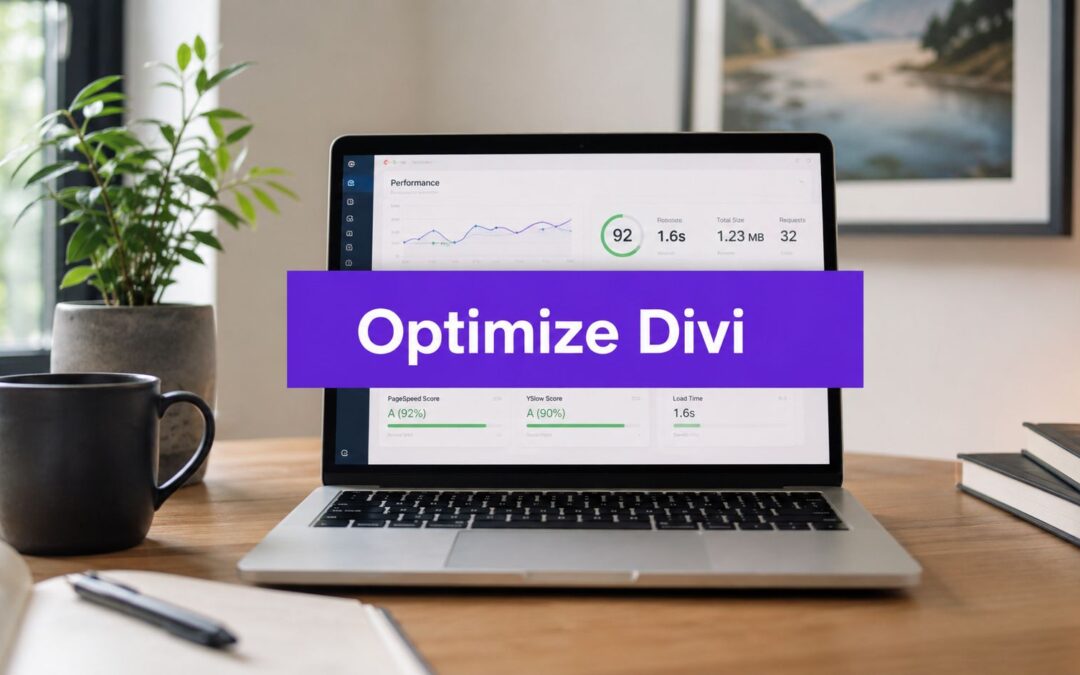
Use a baseline first, then change one thing at a time. The WordPress performance handbook recommends that workflow explicitly, capture TTFB, LCP, CLS, INP/TBT, and total load time before touching settings, then optimize in the order of hosting and PHP, caching, theme and plugin bloat, media delivery, and render-blocking CSS and JS WordPress performance optimization handbook.

What to record before you change anything
Run PageSpeed Insights on the key templates, not just the homepage. Then use WebPageTest to inspect the loading waterfall and confirm whether the delay is server response, render-blocking assets, or something else entirely. Browser dev tools help fill in the gaps when a test result looks strange or inconsistent.
Document three things for each page:
- Server response timing: capture TTFB and note whether the delay comes from uncached requests or slow upstream processing.
- Visual stability and interactivity: record LCP, CLS, and INP/TBT so later changes can be compared against a stable baseline.
- Total loading behavior: keep the full load time and waterfall screenshot so you can see whether a fix improves the page or just reshuffles the delays.
Why the baseline needs more than one run
One test run can mislead you. A page might look fine from one region and crawl from another, especially if the audience is geographically spread out. That matters because Divi sites often pull together theme assets, plugin styles, media, and dynamic content from several places at once.
Lab data and field data also tell different stories. Lab tests help you isolate causes in a controlled environment, while field data shows what real visitors experience over time. If you only trust the audit score, you'll miss the pages that look acceptable in a tool but still feel sluggish to users.
Keep the notes simple. Date, page URL, device type, location, and the exact plugin or setting you changed. That record saves hours when a later update creates a regression and nobody remembers what shifted.
Hosting and Server-Level Foundations
A Divi site cannot outrun weak hosting. If the server is slow, every other optimization has to work harder just to reach a usable baseline, and that reality shows up fast on builder-heavy installs and WooCommerce catalogs.
The benchmark worth keeping in view is LCP under 2.5 seconds, INP under 200 ms, and CLS under 0.1. Those are the user experience targets that WordPress performance guidance treats as the practical standard, not a bonus Google's Core Web Vitals threshold guidance. If the hosting stack cannot produce a steady TTFB, the rest of the site is already starting behind.
What Divi needs from the server
Divi runs well on a modern stack, but it struggles on a constrained one. Builder sessions, page generation, plugin queries, and WooCommerce activity all depend on a host that gives WordPress enough memory, a current PHP runtime, and server-side caching that still holds up when traffic or admin work increases.
Managed WordPress hosting usually outperforms shared hosting for that reason. Shared environments compete for resources with unrelated sites, and Divi feels that pressure immediately during edits, uncached requests, and product browsing. The slowest part of the response often begins before the browser even receives the page.
What to ask a host before you move
Look past the marketing claims and ask how the host handles uncached requests, object caching, PHP version support, and application-level caching. If the provider cannot explain those pieces clearly, the platform is probably tuned for a brochure site, not for a content-heavy Divi build.
Use TTFB as the first reality check, not the host's advertised speed features. A host can bundle a CDN and still leave the PHP layer slow. A host can offer caching and still struggle once the database gets busy.
The server-side improvements that usually matter most are the boring ones. PHP tuning, OPcache, and a properly configured database layer typically do more than flashy add-ons, especially once the site starts carrying more products, plugins, and dynamic layouts. For a deeper server-side checklist, the internal guide at server performance optimization is a useful companion.
If you are also planning the content side of a new site, this practical guide on start a blog with AI tools is a solid reference for structuring launch work without piling unnecessary overhead into the build.
A realistic hosting decision
Shared hosting can carry a small Divi site for a while, but it often becomes the first choke point once product pages, custom headers, and plugin-heavy templates start multiplying. That is especially true on WooCommerce sites, where admin tasks and frontend requests compete for the same limited resources.
If the dashboard feels laggy, the frontend is usually worse. Builders expose server weakness quickly because they force WordPress to do real work before the page can be saved or rendered.
Caching Strategies and CDN Configuration
Caching works on Divi sites, but only when the layers are coordinated. Page caching, browser caching, and object caching each solve a different problem, and if they're stacked carelessly they can interfere with Divi Builder, WooCommerce checkout, or dynamic content.
Start with page caching for public content, then keep browser caching long enough to reduce repeat asset requests, and use object caching when database work is the limiting factor. That sequence avoids the common mistake of adding plugins that promise speed while only moving the bottleneck somewhere else. The Divi-specific challenge is not whether to cache, but what to exclude.
How the layers should behave together
Page caching should serve stable pages quickly to anonymous visitors. Browser caching should keep static assets local so repeat visits don't re-download the same files. Object caching should reduce repeated database work, which matters a lot on product-heavy or plugin-heavy installs.
That last point is where many WooCommerce and Divi sites finally feel responsive again. When the database is busy, page cache alone doesn't fix backend slowness, and the admin area can still feel sluggish even if the front end looks fine. A properly configured object cache reduces that pressure without forcing you to strip out necessary functionality.
What to exclude so the site doesn't break
Divi Builder pages, checkout flows, cart pages, and any dynamic account or form endpoints need careful cache exclusions. If you cache those like a normal brochure page, you'll eventually see stale carts, broken personalization, or editing behavior that makes no sense to the client.
Keep the exclusions narrow and test each one. Over-excluding can be just as wasteful as under-excluding, because it removes the benefit of caching from pages that could safely use it. That balance matters more than plugin brand loyalty, which is why the internal roundup at popular caching plugins is a useful starting point rather than a final answer.
CDN setup that helps instead of complicates
A CDN should carry static assets and reduce geographic latency, not become another layer of confusion. The safest approach is to serve the asset files that don't depend on user state, while keeping the dynamic parts of the page on the origin server.
That separation matters on Divi because the theme and its extensions often load CSS and JavaScript in ways that reflect the page's module structure. If a CDN rule is too broad, it can cache or rewrite something that should stay flexible. Test the homepage, a product page, a cart page, and a builder screen after each change so the configuration stays correct in the actual world.
Divi-Specific Settings and Asset Optimization
Divi gives you more control than many people use. The problem is that most sites leave those controls at default, then compensate later with extra plugins and aggressive minification that only partly solve the actual issue.
The highest-value Divi settings are the ones that reduce runtime work. Critical CSS, Dynamic Assets, and Static CSS file generation matter because they change when and how styles are built, which can remove unnecessary processing from page loads. Those are the settings that make Divi behave more like a modern asset-aware system and less like a theme that rebuilds too much on demand.
The settings that actually matter
Critical CSS helps the browser style above-the-fold content sooner. Dynamic Assets limits what gets loaded to the modules and features used on the page. Static CSS file generation keeps the theme from doing extra work every time the site serves a request.
Those features work best when the site is already clean. If the page is loaded with unused modules, oversized layouts, or too many third-party scripts, the settings help, but they won't rescue the site by themselves. Think of them as force multipliers, not magic.
Images and module-level loading
Divi pages usually contain enough media to make lazy loading worth the effort, but the lazy-load setup has to respect the layout. If it delays the wrong hero image or delays too many above-the-fold visuals, the page can feel slower even if the audit score improves.
Responsive images matter as well. Use the image sizes that match the design instead of forcing huge originals into small modules. WebP can reduce asset weight when handled properly, but the bigger win is still disciplined image selection and layout planning.
A practical example is an extensive landing page with multiple sections, testimonials, and product calls to action. If only one of those areas needs animation or popup behavior, don't load the scripts across every section by default. That's exactly the kind of asset discipline that keeps builder pages usable at scale.
A cleaner way to ship interactive features
Divi Areas Pro is one option that handles popups and fly-ins by loading scripts only when triggers are present, which fits this asset-control mindset well. The same principle applies to every plugin on the page, if the feature isn't needed, don't make the browser carry it everywhere.
The same rule applies to third-party plugins that enqueue styles globally. Some form plugins, sliders, and marketing tools are perfectly functional and still too heavy for every page. Remove what's unnecessary, then test the templates that still need the remaining assets.
Database Optimization and Autoloaded Options
A lot of Divi site owners spend their time on images, caching, and CSS, then wonder why uncached requests still feel sluggish. The problem is often inside the database, especially in autoloaded options and wp_postmeta patterns that build up over time.
WordPress guidance recommends keeping autoloaded options under 800 KB because oversized autoloaded data slows every uncached request WordPress optimization handbook. For a more operational checklist on cleanup and query tuning, the internal guide at database optimization techniques is a useful reference. Another engineering-focused guide points to database indexes and autoloaded options as a major blind spot in many WordPress stacks, especially when plugin-heavy installs and WooCommerce catalogs start to grow database optimization guide. That is the part most generic speed checklists miss.
Why the database keeps dragging sites down
Every request that cannot be served from cache has to assemble data from the backend. If the options table is bloated, or if product and metadata queries are poorly indexed, the site wastes time before the browser sees anything useful.
Divi and WooCommerce make the problem more visible because the stack usually carries more settings, more builder metadata, and more plugin state. None of that looks dramatic in the admin area, but it can slow page generation enough that caching only hides the issue instead of fixing it.
What to clean, and what to leave alone
Start with the safe cleanup items. Remove old revisions, expired transients, and plugin leftovers that no longer support active features. Then inspect autoloaded options and identify anything that does not need to load on every request.
For product-heavy sites, wp_postmeta deserves close attention. If filters, variations, or custom fields are built poorly, the queries become heavier than the frontend ever suggests. That is where a lot of Divi and WooCommerce work gets stuck, because the visual layer looks fine while the database keeps doing extra work behind the scenes.
Here's the practical rule set:
- Inspect autoloaded data first: the options table is often the hidden drag on uncached requests.
- Clean revisions carefully: keep what the editorial team still needs, remove what the site has outgrown.
- Review WooCommerce metadata: large catalogs need better structure, not just more caching.
- Check indexes before blaming the theme: bad query shape can outlast every front-end fix.
The fastest site is not always the one with the fewest plugins. It is usually the one with the cleanest data path when cache misses happen.
Testing Methodology and Troubleshooting Regressions
Performance work only counts if it survives the next plugin update, new product page, or layout change. The sites that stay fast have a testing habit, not just a one-time cleanup.
The best way to do that is simple, staged, and repetitive. Change one variable, test it in staging, compare against the baseline, and only then push it live. That sounds tedious until the first time a plugin update changes asset loading and the team can point to the exact release that caused the slowdown.

A repeatable regression workflow
Begin with the baseline metrics you already captured. Then make the change in staging, not production. Run the same tests again with the same tools, on the same templates, and under the same assumptions so the result stays comparable.
If the numbers worsen, isolate the cause before stacking more changes on top. Plugin updates can alter asset loading, hosting changes can reshape TTFB, database growth can undo earlier gains, and new Divi modules can bypass cache rules that used to work. The fix is usually in the thing that changed most recently, not in the last plugin you blamed.
How to know when the site is slipping again
Monitor production field data so you catch degradation before users complain. Lab tests are useful, but they don't replace real-user behavior, especially on a site that serves different page types and different device mixes.
Set a maintenance rhythm, then stick to it. A monthly audit is often enough for smaller sites, while bigger WooCommerce builds need closer attention because product growth and plugin drift accumulate faster. The point isn't to chase a perfect score every day, it's to keep the site inside a healthy range and catch the regressions while they're still small.
Performance budgets work best when the team treats them like design rules, not optional advice. If a new feature makes the site noticeably heavier, it needs a real justification before launch.
If your Divi or WooCommerce site still feels slower than it should after caching and cleanup, Divimode builds tools and tutorials around the parts most guides ignore, especially interactive features that need careful asset loading and practical performance trade-offs. Visit Divimode to see how its plugins and guidance fit into a faster, cleaner WordPress stack.
More Articles You Will Like