 Alex Martin
A shopper lands on your best-selling hoodie, picks the wrong size, and sees Out of stock. They don't wait around for a miracle. They leave, and your store loses a sale that already had real intent behind it.
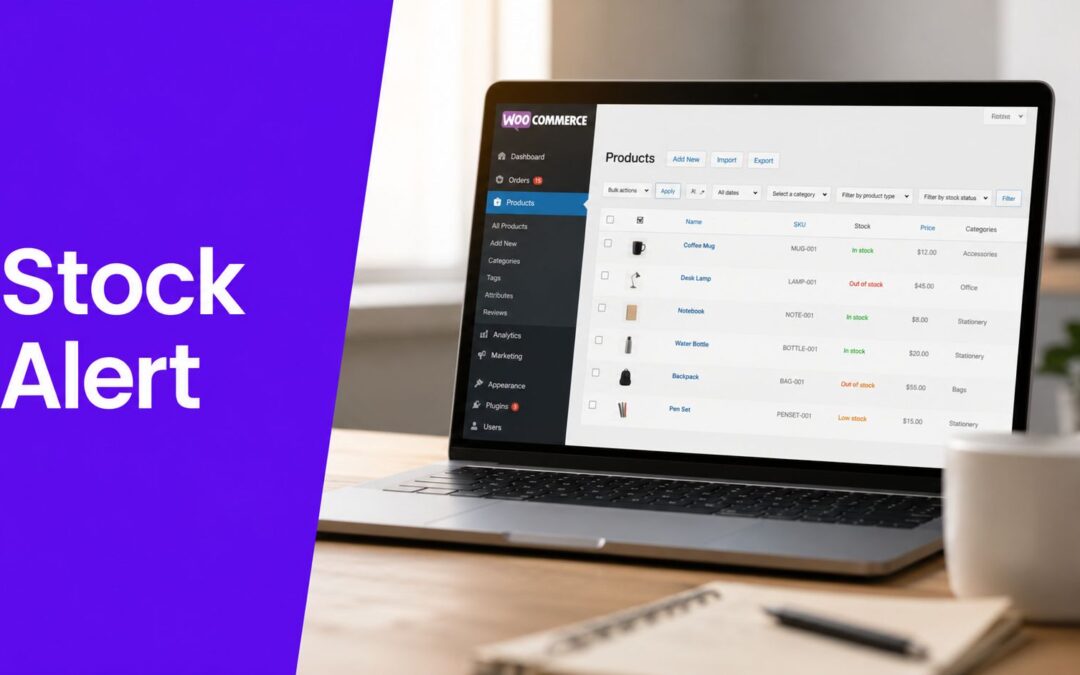
That's where a stock alert notification earns its keep in WooCommerce. In retail terms, it's a waiting list tied to a specific product or variation, so you can reach back out the moment inventory returns. In practical terms, it's one of the cleanest ways to recover sales you were already close to winning, which is why conversion-focused work like Miles Marketing for conversion optimisation is so useful for framing the problem around lost revenue, not just traffic.
Why Out-of-Stock Visitors Are Quietly Costing You Sales
The loss usually happens fast. A shopper checks a product page, sees the size or color they want is gone, and the default WooCommerce message gives them one more reason to move on. If they were already comparing options, they'll often buy from someone who can fulfill now instead of later.
A stock alert notification changes that moment. Instead of treating the sale as lost, you capture an email or phone number tied to that exact product or variation, then notify the shopper when inventory comes back. That makes the restock moment a high-intent touchpoint, because the person already raised their hand before they disappeared.
Why the back-in-stock moment matters
This isn't the same as a generic newsletter signup. A back-in-stock request is tied to a concrete buying intent, a specific item, and a likely purchase window. That's why it behaves more like a recovery mechanism than a marketing blast.
Practical rule: if a shopper was close enough to want a restock alert, your form should be short, specific, and visible right where the product went unavailable.
On a live shop, I'd rather capture fewer qualified requests than bury a signup behind a long form or a generic popup. A visitor who wants the item back in stock doesn't need a brand story. They need a simple way to say, “notify me when this exact product returns.”
That's the revenue logic behind the build. You're not adding decoration to an out-of-stock page. You're creating a second chance for a sale that was already in motion.
Choosing the Right Notification Method for Your Store
The right setup depends on how your store handles restocks and how aggressively you want to interrupt the browsing flow. For a Divi and WooCommerce build, the cleanest options are a popup or inline form, email-only alerts, or SMS-first alerts. Each one solves the same problem, but the trade-offs are different enough that choosing early keeps the build from getting messy later.

A popup or inline form is the easiest fit for most WooCommerce stores. It keeps the request inside the product context, and it works well when the only thing you need is a simple email capture tied to a single item. For that, lighter tools like Popups for Divi are often enough.
Email-only alerts make sense when deliverability is straightforward and the restock window isn't time-sensitive enough to justify a second channel. If the product comes back in stock and the buyer is likely to check email within a normal business rhythm, email keeps the workflow simple. It also keeps setup and maintenance lower than a multi-channel stack.
SMS-first alerts are stronger when the restock is competitive, the item moves quickly, or your audience checks text faster than inboxes. The trade-off is friction, because phone collection needs clearer consent and a more careful trust posture. In return, you get a more immediate channel.
Notification Channel Comparison
| Channel | Setup effort | Best for | Pairs with |
|---|---|---|---|
| Popup or inline form | Low | Capturing interest on out-of-stock product pages | Popups for Divi |
| Low to medium | Standard back-in-stock workflows and simple follow-up | Email automation and WooCommerce hooks | |
| SMS | Medium to high | Fast-moving inventory and urgent restocks | SMS gateways and consent-driven forms |
For a visual builder workflow, Divi Areas Pro is the stronger fit when you want targeting rules to decide when the form appears. It can show the prompt only on out-of-stock products, only on certain devices, or only after a behavior trigger like exit intent. That keeps the alert mechanism from annoying shoppers who can already buy.
The practical recommendation is simple. Start with email capture on the product page, then add SMS only if the product class justifies the extra compliance and integration work. If you get the trigger wrong, the best notification channel still won't convert.
Wiring Up WooCommerce Inventory and Building the Divi Form
The inventory side comes first, because a restock notification is only as good as the stock data behind it. In WooCommerce, that means making sure stock management is enabled at the product level, then confirming that variable products have their own stock settings so a medium hoodie doesn't inherit the status of a large one. If you skip variation-level control, the alert request becomes too vague to be useful later.
Start by checking each product's inventory settings in WooCommerce and making the restock source unambiguous. A user who wants a blue medium shirt should not get a generic product-level message if only the red small variant comes back. The form should capture enough context to tie the request back to the exact item.
The visual part can stay simple. A small “Notify me when available” form on the product page is enough for most stores, especially when the shopper has already hit the stock wall. If you want a lighter build, Popups for Divi can place that form cleanly without overengineering the page.
If you want more control, Divi Areas Pro gives you a better builder-native path. You can design the popup in Divi, then target it only to the right product context so it appears where it matters. The targeting is the win here, because the form stops behaving like a sitewide interruption and starts acting like a product-specific recovery tool.
A clean capture form usually needs only a few fields:
- Email address for the restock notice.
- Phone number if you plan to add SMS later.
- Variant selection when the product has meaningful differences the customer cares about.
- Consent checkbox if your jurisdiction or policy requires explicit opt-in.
Keep the form tied to the product ID, not just the page title. Product names change, but IDs and variation data are what make the alert reliable when stock returns.
For a practical setup walkthrough that matches the Divi workflow, the internal guide on WooCommerce with Divi is a useful companion because it keeps the build inside the same design system instead of forcing you into separate tooling.
The key implementation detail is storage. You need each request saved in a way that preserves the product ID and, ideally, the variation context too. That's what lets the restock email point back to the exact item the shopper wanted, instead of sending a vague “something you viewed is back” message.
Once the capture form is in place, the rest is mostly discipline. Keep the UI short, keep the targeting precise, and don't ask for more data than you need to fulfill the alert.
After the form is built, the timing matters.
Automating the Restock Email
A captured email does nothing until the restock trigger is wired up. The easiest route is a lightweight back-in-stock plugin that manages the queue, stores the requests, and sends the email when stock changes. That's the least risky path if you want predictable behavior without maintaining custom code.
The custom route is also straightforward if your stack already has developer oversight. A small snippet can hook into WooCommerce's woocommerce_product_set_stock_status action, check whether the item has moved from out of stock to in stock, and then fire the alert only once. That approach gives you tighter control, especially if you need to suppress duplicate sends when stock changes repeatedly in a short window.
A practical email template should stay short and direct. The subject line needs to say the product is available again, the body should include the product image, the product name, and a deep link to the exact variant or item page. If the restock window is narrow, say so plainly, because urgency is part of why the email works.
For a cleaner open-rate strategy, the guidance at strategies for higher email opens is worth reviewing before you finalize the subject line and preview text. The subject doesn't need clever copy, it needs clarity and relevance.
A reliable automation flow usually looks like this:
- Detect stock status change on the product or variation.
- Confirm the item was previously out of stock before sending anything.
- Match the request queue to the exact product ID and variation.
- Send the email with a direct product link.
- Rate-limit or suppress duplicates if inventory shifts again.
- Log the send so you can troubleshoot later.
For a broader automation perspective, the internal resource on best email marketing automation tools fits well alongside the WooCommerce workflow, because the primary challenge is not just sending email, it's making sure the right event triggers the right message.
Testing matters more than the code style here. Restock the item in staging, confirm the email fires once, then toggle stock back and forth to make sure duplicate sends don't happen. If the workflow fails in staging, it'll fail at the worst possible moment on a live store.
Privacy, Consent, and Smart Targeting
A restock form sits at the edge of marketing and fulfillment, so the consent language has to be clear. Tell the shopper exactly what they're signing up for, link to your privacy policy, and make the opt-in visible enough that nobody can mistake it for a purchase action. If your region requires an unchecked consent box, leave it unchecked by default.
Single opt-in often fits back-in-stock better than double opt-in, because the buying intent is immediate and the customer expects a fast response. Double opt-in can add friction that kills the request before the item is back. The trade-off is that single opt-in demands tighter list hygiene and cleaner wording up front.
How to keep the form compliant without making it clumsy
The form doesn't need to become a legal document. It needs a short explanation, a clear action, and a privacy reference that a client or reviewer can inspect without guesswork.
- State the purpose clearly. Tell users they'll receive a restock alert for that item.
- Use a direct opt-in. Don't bundle it with unrelated marketing unless you've separated consent.
- Link the privacy policy. Make it easy to find and easy to read.
- Avoid re-showing the prompt. If someone already subscribed, don't keep asking.
That last point is where targeting rules matter. If a shopper is logged in and already opted in, the popup should stay hidden. The same goes for cart and checkout, where an interruptive alert request can create friction at the wrong moment.
The Divi-specific guidance on Divi GDPR best practices is useful if you want to align the form with a broader consent policy without overcomplicating the design. The main thing to remember is that privacy work is part of conversion work here, not a separate chore.
A smart stock alert notification flow respects context. Show it on the product page, hide it where it would get in the way, and avoid asking the same person twice. That's the difference between a helpful restock tool and another popup nobody trusts.
Testing, Analytics, and Tuning Over Time
A restock alert system isn't finished when the popup goes live. Value shows up when you can see how often the form appears, how often people subscribe, how many restock emails go out, and how many of those sends turn into orders. Those four signals tell you whether the system is recovering sales or just collecting addresses.

Start with the page-level behavior. If the popup gets plenty of impressions but few signups, the message or trigger is probably off. If the signups look healthy but the restock emails never fire, the automation or stock-status logic needs attention. If emails send and nobody buys, the message, timing, or product relevance is weak.
What to inspect first
- Popup impressions to see whether the form is being seen.
- Subscribe rate to measure whether the offer feels useful.
- Restock emails sent to confirm the automation is working.
- Restock conversion rate to see whether the recovery loop is producing revenue.
The most common failure mode is boring but costly. The form shows on the wrong product, often because the display rules are too broad or the variation context wasn't captured correctly. The second most common problem is deliverability, where the email lands in spam and the customer never sees the restock.
A useful tuning habit is to review the system after the first busy week and again after 30 days. If the popup is appearing too early on mobile, move the trigger later. If the product page is already crowded, reduce the visual weight of the prompt. If multiple variants restock together and send duplicate notices, tighten the queue logic.
Practical rule: every alert should justify its existence with a clear action, a clear recipient, and a clear stock event.
That mindset keeps the workflow from drifting into noise. A good stock alert notification feels invisible until the right item returns, then it acts fast and gets out of the way.
If you want to build this in Divi without wrestling the rest of the storefront, Divimode gives you the tooling to keep the alert flow inside the builder, with targeting and popup control that fit real WooCommerce work. Visit Divimode to see how the plugins and tutorials can help you ship a cleaner back-in-stock experience on your next store.
More Articles You Will Like