 Alex Martin
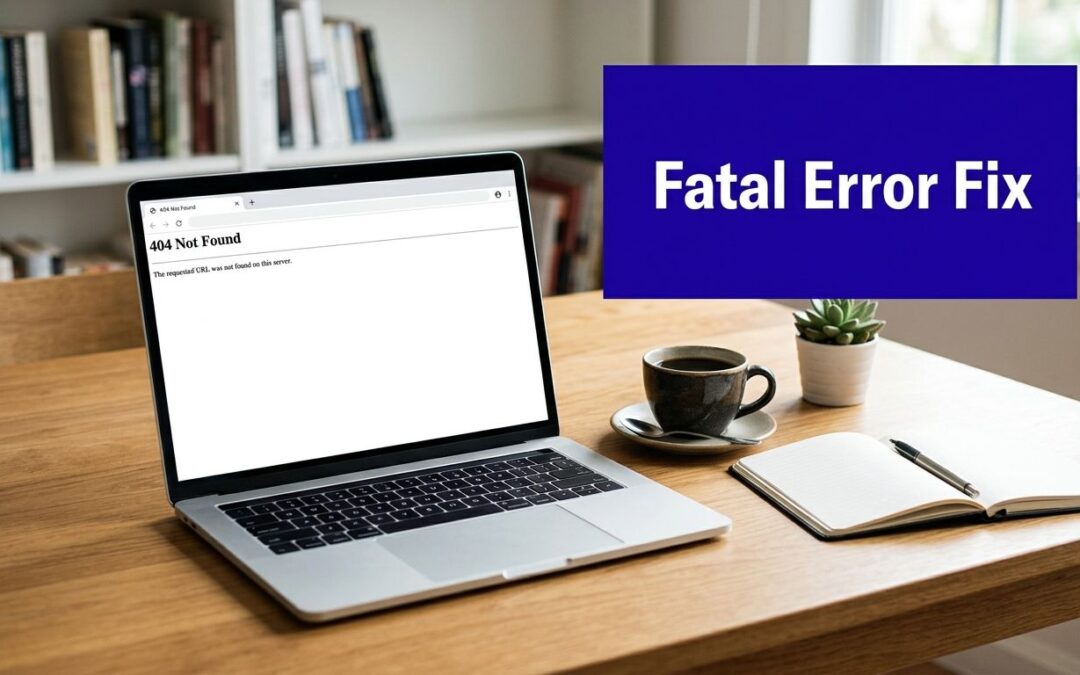
You're staring at a broken Divi site, the client is asking whether the checkout is down, and the dashboard won't load. That's the worst part of a WordPress fatal error, it doesn't announce itself neatly, it just stops PHP execution and can take the front end and wp-admin down together. The good news is that this is usually a diagnosable failure, not a mystery, and the fastest way out is to identify the fault domain before you change anything.
When Your Divi Site Goes Blank
The site goes white, the dashboard stops loading, and the first instinct is to start disabling plugins at random. That usually makes the outage longer. A WordPress fatal error is a PHP failure that stops execution before WordPress can render the page, so the job is to identify whether the break is coming from a plugin, the theme, PHP, or memory before you touch anything.
Treat the outage as a diagnosis problem
A broken Divi site is usually loud in one place and silent in another. The front end may be blank, wp-admin may be unreachable, or both may fail at the same time, which is why a quick guess rarely helps.
Start with the last change. If the site fell apart after a plugin update, a child theme edit, a PHP switch, or a server change, that is the first place to look. The recovery pattern is the same even when the symptoms feel different, isolate the fault domain, confirm it, then change one variable at a time.
Divi makes the failure feel wider because the builder sits on top of theme files, child theme code, third-party modules, WooCommerce templates, and server limits. A builder problem can be a real server-side crash, or it can be a Divi editing issue that only looks like a fatal error. If the Visual Builder is acting up while you are working in Divi areas, the troubleshooting steps in Visual Builder issues while editing Divi areas help separate a builder symptom from a deeper PHP failure.
When the site is already down, the recovery path matters more than the theory. WordPress support treats this class of failure as a technical issue that blocks normal rendering, and their guidance is a good reminder to work from the error state instead of guessing at the cause (WordPress support on technical issues).
Practical rule: if the crash followed an update, install, or server change, start with the most recent change first.
That approach is boring, but it works. It gives you a clean path to test plugins, theme files, PHP compatibility, and memory limits without making the outage harder to reverse later.
The Four Root Causes Behind Most Fatal Errors
Before you touch a file, you need a working theory. Most fatal errors fall into four buckets, and the debug log usually tells you which one you're dealing with if you read the path, file name, and error type carefully.

Plugin conflict
This is the most common place to start because plugin code changes often, especially on Divi sites with popups, builders, shipping tools, analytics, or WooCommerce extensions. If the crash followed a plugin update, the error log often points straight at a plugin file path. If wp-admin still opens, deactivate the last plugin you changed first. If wp-admin is dead, rename the plugin folder and test from there.
Theme code failure
Divi child theme edits are a frequent source of parse errors, especially when someone has edited functions.php by hand. A missing semicolon, stray bracket, or bad hook call can kill the site instantly. Theme failures often show up right after a theme update, a child theme deploy, or a manual edit made in a hurry.
PHP version or configuration mismatch
A site can run fine for months and then break after a host upgrades PHP or after a plugin starts using syntax your environment doesn't support. Recent guidance increasingly centers on PHP version rollback or upgrade because compatibility pressure is a real maintenance issue in modern WordPress stacks (common errors handbook, modern WordPress error guidance). If the log mentions syntax problems, unsupported functions, or version-specific failures, think environment first.
Exhausted resources
A memory limit error usually looks different from a code parse error. The log often shows a memory exhaustion message rather than a file syntax complaint. That matters because raising memory can get the site back online, but it can also hide a deeper issue if a page, module, or import job is too heavy for the current stack.
If the error started after a new module, a larger page, or a fresh checkout workflow, don't assume the code is broken first. Check whether the server is just running out of room.
A quick decision tree works well here. If the break followed an update, suspect plugin or theme code. If the log mentions syntax or unsupported functions, suspect PHP mismatch. If the log mentions memory exhaustion, suspect resource limits. If nothing changed in the code, look harder at the host environment before you start rewriting anything.
Reading the Clues in Debug Logs and Host Tools
A fatal error rarely gives you the full story on the screen. The useful clues usually sit in the logs, and WordPress recovery guidance points you toward the recovery email, debugging, and wp-content/debug.log, while support guidance also treats the log as the fastest route to the fault (check for website errors).
Turn logging on safely
If you can edit files, enable WP_DEBUG and WP_DEBUG_LOG in wp-config.php, then reproduce the error once. One clean reproduction is enough to generate a log entry you can trust. If the site is public, keep errors out of the browser and log them instead.
Once logging is on, open wp-content/debug.log and look for three details, the file path, the line number, and the fatal message itself. A path inside a plugin folder puts the plugin first on the suspect list. A path inside themes/your-child-theme/functions.php points more strongly to the theme or a child theme edit. If the message mentions memory exhaustion or unsupported syntax, the issue is more likely PHP or server configuration than a bad layout module.
Use host logs when WordPress logs are thin
Shared hosts often hide display errors, and long logs are awkward to read in a browser. In that case, the host's own error log is usually quicker, whether you reach it through cPanel, a managed WordPress dashboard, or SSH. That is also where a separate extension failure can expose the pattern. The docs on shipping rule errors are useful if a checkout-related extension is part of the crash path, because they push you to inspect the exact failing rule or file instead of guessing from the symptom.
Useful habit: copy the exact fatal line before you change anything. Once you have the line, compare it after each fix attempt and you can tell whether the site is actually recovering.
A stressed admin often changes three things at once, and that breaks the trail. Do not rename the plugin folder, swap the theme, and raise memory in the same pass. Read the log, identify the fault domain, and make one change. On a Divi build, that same habit separates a Divi core problem from a child theme edit, and it matters even more when wp-admin is unreachable. If you need a broader pass through the site, check for website errors before you start editing files.
The Three Fixes That Solve Most Fatal Errors
Once you know where the failure lives, most recoveries fall into one of three moves. These are the fixes that get used in the field, not the vague advice people repeat in forums.

Isolate plugins first
Rename the entire plugins folder through FTP or File Manager, then reload the site. If the site comes back, the fault is inside a plugin, not WordPress core. After that, create a fresh plugins folder and move plugins back one at a time until the failure returns.
That sequence matters because it confirms one culprit instead of making you guess. If you disable everything and then re-enable in bulk, you've just created a new problem set. Keep the test narrow, then stop as soon as the site breaks again.
Fall back to a default theme
If plugins aren't the issue, move the active theme folder out of the way so WordPress falls back to a default theme. On Divi builds, this is the cleanest way to separate a Divi core issue from a child theme edit. If the site loads after the switch, restore the theme files from backup before you start editing them live.
Raise memory carefully
If the log says memory is exhausted, increase the PHP memory limit in wp-config.php first. A common pattern is adding the memory directive just above the “stop editing” comment, then testing the same page again. If the host allows it, you can also adjust memory in .htaccess or php.ini, but don't treat that as a substitute for fixing a runaway page or a bloated module.
A memory bump is a bridge, not always a cure. If a product page or builder layout keeps pushing the stack over the edge, the fix may be to simplify the page or remove the extension that's chewing through resources.
One practical note for Divi users, Divi Areas Pro can inject popups, fly-ins, and other dynamic content into page flows, so if a crash appears right after adding behavior-heavy content, test that layer separately before assuming the theme is broken. That's not a complaint about the tool, it's just how layered WordPress stacks behave when a page becomes more dynamic.
Divi-Specific Failures and How to Spot Them
Divi adds failure modes that generic repair guides often skip. The site can look like a theme problem, but the issue might be a builder interaction, a child theme edit, or a resource spike caused by the way the page is assembled.
Shortcode and builder corruption
A client saves a layout, refreshes, and gets a fatal error or a blank builder screen. In Divi, that often means a corrupted shortcode chunk, a partially saved module, or a bad content block after a copy-paste from another site. The fastest diagnostic move is to compare the broken page against a recent backup or a staging copy, then remove the last content block that changed.
Child theme functions.php mistakes
This is the classic “site broke right after I added a small snippet” failure. A missing closing brace in functions.php can take down both the front end and the dashboard, which makes it feel worse than it is. If the log points at the child theme file, restore the file from version control or backup before trying to rewrite the snippet from memory.
Builder-heavy pages and memory pressure
Long landing pages, oversized product templates, and complex global layouts can trigger resource strain inside the builder. The symptom is often inconsistent, the page may load once, then fail on edit or preview. If the log points to memory exhaustion and the problem page is unusually heavy, trim the page first, then test again after the memory limit adjustment.
PHP compatibility after updates
Divi, its extensions, and WooCommerce all sit in a moving compatibility stack. A site can be fine until a host changes PHP or a plugin update introduces newer language expectations. If the failure follows a platform update and the log shows syntax or compatibility clues, the problem is often environmental, not a broken design.
The cleanest recovery path when both the front end and wp-admin are unreachable is to use recovery mode if the email arrives, then test the child theme and plugin stack in isolation. If that fails, restore the last known-good theme or backup copy and retest the exact page that broke. That approach tells you whether the crash lives in the builder content, the theme layer, or the server layer, without forcing a full redesign.
Field rule: if you can reproduce the error by opening one specific Divi page, the problem is usually narrower than the whole site. Keep the test focused on that page first.
Recovery Paths When wp-admin Is Unreachable
The worst fatal errors lock you out of the dashboard, which means the recovery path has to work from the outside in. Start with the safest option and stop as soon as the site responds normally.

Use the recovery email first
WordPress recovery mode was formalized because fatal errors became common enough to need a built-in escape hatch (fixing WordPress fatal errors guide). If the admin email receives the link, use it before you touch the files. That link often lets you disable the offending plugin or theme without full access to wp-admin.
Fall back to file access
If email doesn't help, use FTP, SFTP, or your host's File Manager. Rename the plugin folder, inspect wp-config.php, and check the debug log again. This is also the right moment to use backup strategies for SMBs as a reminder that a known-good restore point beats an improvised repair when the site is business-critical.
Use WP-CLI if SSH is available
On hosts that allow SSH, WP-CLI can make recovery faster and cleaner. You can deactivate plugins, inspect status, and confirm the install without clicking through a broken dashboard. If the host already exposes the error through logs, WP-CLI is most useful when you know the culprit domain and just need a clean way to disable it.
Restore from a verified backup when the trail goes cold
If the crash survives the recovery link, file edits, and plugin isolation, stop pushing changes and restore from a known-good backup. Don't keep layering fixes onto a site you can't verify. If the backup brings the site back, test the latest change on staging before applying it again.
Divimode's error guidance fits naturally here because it reinforces the same field habit, isolate, confirm, then repair. The important part is not the toolchain itself, it's resisting the urge to change multiple variables while you're still trying to identify the one that broke the site.
A Repeatable Workflow to Prevent the Next Fatal Error
The best prevention workflow is boring in the best way. Test on staging, verify PHP compatibility before updates, keep backups that you've restored before, and watch for warning signs before a memory limit becomes a site outage.
Start every update cycle the same way. Check the plugin, theme, and PHP version combination on staging first, especially for Divi, WooCommerce, and any custom builder stack. If the site depends on a feature-rich extension, confirm the update path before the change reaches production.
Then keep a restore point that you trust. A backup that exists only in theory doesn't help when the dashboard is dead. support for WordPress websites becomes practical rather than abstract, because ongoing maintenance is really about having a verified path back when a plugin, theme, or host change goes sideways.
Finally, monitor the pieces that usually fail first. If the builder feels slower, the checkout is heavier, or the logs start filling with repeated warnings, don't wait for a fatal error to make the diagnosis obvious. Fix the pressure point while the site is still live, not after wp-admin disappears.
The broader maintenance reality in 2025 and 2026 is simple, PHP upgrade pressure and frequent plugin and theme updates have made compatibility risk part of normal WordPress operations, especially for agencies and WooCommerce stores. That's why the best Divi teams don't just fix crashes, they run the same decision tree every time a site changes. Diagnose first, change one thing, verify, then lock in the backup.
Use that workflow on the next Divi update, not after the next outage. If you want a practical recovery partner for Divi troubleshooting, plugin conflict isolation, and builder-safe maintenance, visit Divimode and keep the fix process close the next time a WordPress fatal error hits a live site.
More Articles You Will Like