 Alex Martin
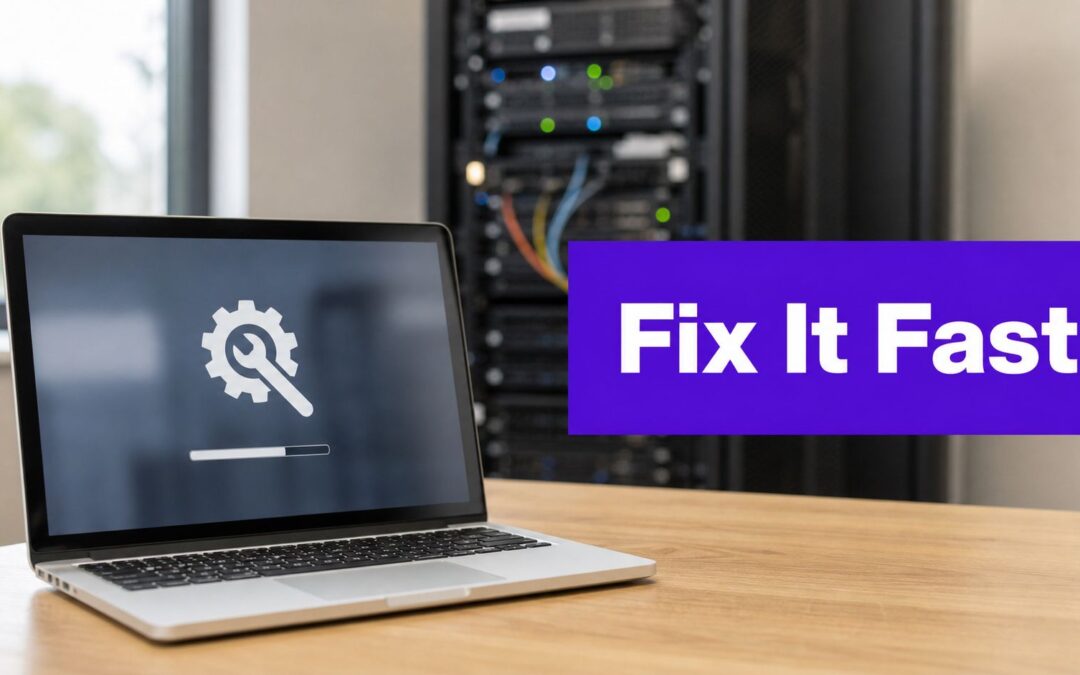
You hit refresh and the same gray notice is still there. The front end won't load, the dashboard may feel half-alive, and every extra minute makes the problem feel bigger than it is. In most cases, WordPress stuck in maintenance mode is not a broken site, it's an update that stopped before cleanup finished.
WordPress creates a hidden .maintenance file during core, plugin, or theme updates, and the site stays locked while that file remains in place Codeable's explanation of WordPress maintenance mode. When the update completes normally, WordPress removes the file and the site returns to normal. When it doesn't, the fix is usually direct and fast.
That matters even more on Divi and WooCommerce builds, where a routine update can touch several moving parts at once. A builder, storefront plugin, and payment-related extension can all be in the same update window, which raises the odds that one stalled component leaves the maintenance flag behind.
That Sinking Feeling When Your Site Wont Come Back
The worst version of this problem is the one that starts with something ordinary. You update a plugin, close the tab, come back later, and the site is still showing the maintenance notice or hanging as if the update never finished. That is usually the point where concern sets in, because the issue looks bigger than it is.
Maintenance mode is a protective WordPress behavior. WordPress enters that state during updates, then expects the hidden file to disappear once the process ends cleanly. If the file stays behind, the site keeps acting like the update is still running.
Divi sites make this feel more urgent because the problem often sits inside a custom stack rather than a plain plugin list. A Divi child theme can be carrying custom functions, the builder may be active, and a layout or extension update can interrupt the cleanup phase at the exact wrong moment. I have seen that happen when a Divi child theme's functions.php is touching the same code path as a WooCommerce payment gateway update, and the result is a maintenance screen that looks like a full outage even though the site is usually waiting on a single leftover file.
WooCommerce stores create a similar kind of panic for a different reason. Checkout, cart, product filters, shipping tools, and payment extensions often update in the same window, so a stall in one of those pieces can leave the storefront looking dead while the rest of WordPress is still intact. That is why the first move is to assume cleanup failed, not that the whole installation needs repair.
The fastest way to calm this down is to treat it like a cleanup problem first, not a rebuild problem.
The file you need is in the WordPress root directory, usually beside wp-config.php. If it is still there, WordPress still thinks the update is in progress. Remove it, and the site usually comes back right away. If the screen does not change after that, cached output may still be masking the recovery, which is common on Divi builds that rely on aggressive page cache settings, as noted in Divimode's cache troubleshooting guide.
Immediate Fixes to Get Your WordPress Site Online Now

Start with file access, because that is usually the quickest way back in. Open your host's File Manager, or connect with FTP, SFTP, or SSH, then go to the WordPress root directory and look for the hidden .maintenance file. If you do not see it right away, enable show hidden files, since dot-prefixed files are often hidden by default. A clean recovery guide from Kinsta's maintenance mode recovery guide walks through the same basic file check.
Delete .maintenance from the root level, not from a subfolder. The file should sit in the same directory as wp-config.php, so if you are inside wp-content or a plugin folder, you are in the wrong place. Once the file is gone, reload the site. In a normal case, the front end comes back right away.
If the site still looks broken, do not assume the delete failed. Some hosts or plugins keep serving cached output after the file is removed, which can make it look as though maintenance mode is still active. That shows up often on Divi builds with aggressive caching, especially when layout and builder assets are still being served from cache, as noted in cache-related issues in Divi sites. Clear any page cache, server cache, or CDN cache before you move deeper.
For developers, the fastest recovery path is often command line access. WP Remote notes that SSH recovery can use wp maintenance-mode deactivate, and direct removal with rm /path-to-root/.maintenance also works when you already have shell access. If you are managing several sites, that is the quickest way to bring one back without waiting on the hosting panel WP Remote's stuck maintenance mode guidance.
Divi and WooCommerce stacks add a practical wrinkle here. A builder update, a child theme tweak, or a store extension can leave old content on screen long enough to mimic a failed repair, even after the lock file is gone. If the page still seems frozen after deletion, check the caching layer first, then continue with a careful root cause analysis process for IT at root cause analysis process for IT.
If you need one clean rule, make it this. Delete .maintenance first, then clear caches, then investigate the update that caused the lockup.
Diagnosing the Root Cause of the Stuck Maintenance Screen
A stuck maintenance screen usually begins with an interrupted update. WordPress creates the maintenance file during a core, plugin, or theme update, and it expects that file to disappear when the process finishes. If the process times out, is interrupted, or fails partway through, the cleanup step can be left behind.
Divi and WooCommerce sites deserve extra caution here. A Divi-based stack often includes the theme, the Divi Builder plugin, child theme customizations, and design extensions. WooCommerce adds store logic, checkout scripts, and product add-ons, so one failed update can affect more than one moving part. The issue is usually not that these tools are fragile, it is that there is more surface area for an update to stall.
If deleting .maintenance does not fully solve the problem, isolate the component that failed. On a live site, renaming the wp-content/plugins folder is blunt and can create avoidable downtime across unrelated plugins. A cleaner approach is to use WP-CLI to deactivate the specific plugin you suspect, then reactivate plugins one at a time until the failure returns. That same logic applies to a theme or child theme if the plugin test does not expose the problem.
What usually breaks the update chain
- A plugin update hangs mid-process. A security extension, cache plugin, or builder add-on can stall while WordPress is still holding the maintenance flag.
- A theme update collides with customization. Divi child themes and template overrides can expose update conflicts that do not appear in simpler installs.
- The server stops responding in time. When the host cannot finish the update cleanly, WordPress leaves cleanup unfinished.
Treat the investigation as a root-cause exercise, not a guess-and-refresh loop. The root cause analysis process for IT fits this situation well because the goal is to identify the exact interruption, not just clear the symptom.
After the site is back, run a quick pass with Divimode's website error checking guide to catch lingering problems before you start the next round of updates.
Advanced Troubleshooting for Stubborn Maintenance Issues
Sometimes the site still feels stuck after .maintenance is gone. At that point, the problem is usually no longer the file itself. A cache layer may be serving stale output, or an update may have left behind a deeper inconsistency that the browser keeps replaying.
Caching is the first thing to test. Clear the browser cache, the WordPress cache plugin, the hosting cache, and any CDN cache in use. If you run a Divi site with aggressive optimization settings, stale assets can make a repaired page look broken even when the backend is fine. That can be especially confusing on WooCommerce stores, where product and cart pages may render differently for logged-in users and visitors.
When the usual fix is not enough
- Clear every cache layer. Browser, plugin, host, and CDN caches can all preserve the maintenance response.
- Check for a stuck plugin update. If the site still errors after cache cleanup, revisit the plugin isolation step.
- Review multisite behavior carefully. On multisite installs, maintenance-related recovery may need a network-level check because one site can look broken while the network remains intact.
- Restore a backup if the update clearly failed. If the site was stable right before the update and the cleanup path isn't restoring it cleanly, a backup is often the safest recovery.
For teams building headless or API-driven workflows around WordPress, the practical headless development resource is useful context, because API-driven sites add another layer of dependency when front-end rendering and backend availability diverge.
The main judgment call here is simple. If .maintenance removal and cache cleanup don't restore the site, stop treating it like a cosmetic issue and treat it like an update failure. That shift saves time and avoids repeated, risky clicks.
Best Practices to Prevent Getting Stuck in the Future
The safest update routine starts before you click update. Take a full backup first, then test the change on staging before you apply it to the live site. That's the cleanest way to avoid discovering a plugin conflict while visitors are watching the site fail.
Divi and WooCommerce sites benefit from a more disciplined update order than a simple brochure site. Update one component at a time, then verify the front end, the builder, and any commerce flow that matters to the business. A theme update, a payment extension, and a visual builder add-on should not all be changed in the same pass if you want a clear audit trail when something goes wrong.

A practical prevention checklist
- Backup before updates. Keep a restore point ready before touching core, themes, or plugins.
- Use staging first. Test the exact Divi and WooCommerce stack before pushing it live.
- Update one item at a time. This makes it easier to identify the exact plugin or theme that caused trouble.
- Watch server resources. Slow hosts are more likely to interrupt updates before cleanup completes.
- Choose reliable hosting. Good support matters when an update has to be rescued quickly.
Resource limits matter because update processes need enough breathing room to finish. If your server is already under strain, an update can time out before WordPress removes the maintenance file, which is how a routine change turns into a locked site. On busy stores, that risk goes up because more plugins are active and more requests are competing for the same environment.
One more practical note, Divi sites often use custom maintenance or coming soon layouts during planned work. That can be fine when it's intentional, but it becomes a problem when a real WordPress maintenance state gets confused with a visual maintenance page. Keep those distinctions clear so you know whether you're dealing with a design choice or an unfinished update.
The best maintenance mode fix is the one you don't need to use on production.
Taking Control of Your WordPress Updates
A stuck maintenance screen is a process failure, not a site failure. WordPress tried to update, created its hidden file, and stopped before cleanup finished. Once you understand that, the issue becomes manageable instead of mysterious.
The practical pattern is straightforward. Remove .maintenance, clear any cache that may be replaying the old state, and isolate the plugin or theme that interrupted the update. That workflow works for a simple site, and it matters even more for a Divi-powered store where design, commerce, and extensions all depend on each other.
If you manage Divi sites regularly, keep your update process documented and repeatable. Divimode's WordPress update guide is a useful reference for building a clean maintenance routine around the tools you already use.
The goal is not to avoid updates. The goal is to make updates boring, predictable, and easy to reverse when something misbehaves.
If you want to handle Divi updates, maintenance pages, and plugin interactions with less guesswork, start with Divimode and build a safer update workflow around your next site change.
More Articles You Will Like