 Alex Martin
An image optimization plugin isn't just a nice-to-have for a modern WordPress site; it's absolutely essential. These tools are the secret to shrinking your image file sizes without making them look blurry or pixelated, which directly translates to faster page loads and a much happier user experience. A good plugin automates compression, converts images to next-gen formats like WebP, and enables lazy loading—tackling what is often the single biggest cause of a slow website.
Why Image Speed Is Slowing Down Your Divi and WooCommerce Site
Let's be blunt: a slow website kills sales and sends visitors running for the hills. And nine times out of ten, unoptimized images are the main culprit.
This is especially true for Divi users, who are busy crafting visually stunning layouts, and for WooCommerce stores that rely on detailed product photos to make a sale. In both cases, heavy images create a massive performance bottleneck that directly hurts your bottom line.
Picture a gorgeous Divi hero section with a massive, high-resolution background image. If that file is several megabytes, visitors on a shaky mobile connection will stare at a blank space for seconds while it loads. The same goes for a WooCommerce product gallery. If a customer has to wait for each high-quality photo to pop into view, they’re far more likely to get frustrated, abandon their cart, and shop somewhere else.
The Impact on Core Web Vitals and SEO
This delay isn’t just a minor annoyance; it’s a direct hit to your Google Core Web Vitals. The Largest Contentful Paint (LCP), which measures how long it takes for the main, most important content of a page to load, is heavily influenced by large images. A poor LCP score tells Google that your site offers a bad user experience, and that can push you down in the search rankings.
Unoptimized images often account for a staggering 45-65% of a page's total weight. Slow-loading visuals aren't just a technical issue—they are a business problem that drives up bounce rates and tanks your conversions.
A Real-World Performance Scenario
The data doesn't lie; the improvements from optimization are dramatic. In one test, a single 693KB image was slashed down to just 165KB using a simple optimizer plugin. That one action boosted the site's Google PageSpeed Insights mobile score from 47 to 69—that's a 47% improvement.
Even more importantly, the LCP plummeted from a painful 25.7 seconds to a much healthier 5.6 seconds. That's the difference between a visitor leaving and a visitor staying.
Getting a handle on these techniques is a game-changer for site performance. For a solid overview of different methods and how they impact speed and sales, check out these practical tips on how to optimize images for the web.
Properly handling your visuals is a fundamental part of building fast, effective websites with Divi. To go even deeper, take a look at our ultimate guide to using images with Divi for more expert advice.
How To Choose The Right Image Optimization Plugin
Picking the right image optimization WordPress plugin can feel like a shot in the dark, but it really just boils down to matching a tool’s strengths to what your site actually needs. The best plugin for a freelance designer building simple Divi brochure sites is worlds apart from what an e-commerce manager needs for a high-traffic WooCommerce store. Your final decision should really hinge on a few key factors.
First up, you need to decide where the optimization happens. Some plugins process images right on your own server. This is often free, which is great, but it can absolutely bog down your site during big bulk jobs. The alternative is cloud-based processing, which offloads all that heavy lifting to external servers. This keeps your site running smoothly but usually comes with a subscription or a credit-based fee.
This decision is more critical than you might think. As you can see below, heavy, unoptimized images are a primary culprit for slow websites.

As the chart makes clear, diagnosing the root of a slow site is step one, and oversized media is a frequent offender that a good plugin can fix almost instantly.
Core Features to Compare
Once you've settled on server vs. cloud processing, it's time to dig into the features. Not all plugins are created equal, especially when it comes to automation and advanced tools. In my experience, these are the non-negotiables you should look for:
- Next-Gen Format Conversion: Your plugin absolutely must convert images to WebP or AVIF automatically. These modern formats are a game-changer, slashing file sizes by 25-50% compared to old-school JPEGs and PNGs, all without any noticeable drop in quality.
- Bulk Optimization: You need a simple way to crush your entire existing media library in one go. A solid plugin makes this a "set it and forget it" process.
- CDN Integration: A Content Delivery Network (CDN) is a must-have for speed. It caches your images on servers around the globe, delivering them from a location physically closer to your visitors. The result? Dramatically faster load times for everyone.
Pro Tip: Look for a plugin that bundles optimization with its own image CDN. Services like Optimole do this brilliantly, giving you smaller files and faster global delivery in one simple package. It's a powerful two-for-one solution for any serious website owner.
Top Contenders And Their Strengths
The WordPress plugin market is massive, valued at an incredible $1.32 billion in 2023. Inside this ecosystem, a few top performers really shine. EWWW Image Optimizer, for instance, has over 1 million active installations and a stellar 4.8/5 rating from nearly 6,000 reviews, largely because it offers unlimited WebP conversions without a paywall.
For Divimode users building interactive popups, a tool like Optimole is a fantastic choice. It delivers real-time optimization, lazy loading, and retina-ready images, all served up via a super-fast CDN. You can find more details in this great roundup of the best WordPress image optimization plugins on aioseo.com.
Image Optimization Plugin Feature Comparison
To help you decide, I’ve put together a quick side-by-side comparison of a few of the most popular plugins. This should make it clearer which one is the best fit for your workflow and budget.
| Feature | ShortPixel | Optimole | EWWW Image Optimizer |
|---|---|---|---|
| Processing | Cloud-Based | Cloud-Based | Server & Cloud |
| WebP/AVIF | Yes | Yes | Yes |
| CDN Included | Optional | Yes (Built-in) | Optional |
| Ideal For | Balanced performance and control | Hands-off automation and speed | Free users and server-side tasks |
Ultimately, choosing the right image optimization WordPress plugin is about honestly assessing your budget, your technical comfort level, and your performance goals. Whether you need a free, server-based tool or a premium, all-in-one cloud solution, the right plugin is out there to make your Divi or WooCommerce site absolutely fly.
Configuring Your Plugin for Maximum Performance
Just installing an image optimization WordPress plugin is the easy part. The real magic—the stuff that actually makes your site faster—happens when you dive into the settings. Moving beyond the defaults lets you fine-tune everything from compression levels to automated resizing, unlocking the serious performance gains you're after.
Let's walk through the essential configurations that will unleash your plugin's true potential. I'll focus on the settings that have the biggest impact, especially for Divi layouts and WooCommerce product galleries, so your visuals stay sharp while loading in a flash.
Dialing in Compression: Lossy vs. Lossless
Your first big decision is choosing the right compression method. Most plugins give you two main options, and the best choice really depends on what kind of images you’re using.
- Lossy Compression: This is your workhorse. It dramatically shrinks file sizes by removing tiny bits of image data you'll likely never notice. For 90% of website images—think photographs in Divi hero sections or detailed WooCommerce product shots—lossy is the way to go. Speed is king here.
- Lossless Compression: This method shrinks files without sacrificing a single pixel of quality, mostly by stripping out unnecessary metadata. The file size reduction is smaller, making it perfect for logos, icons, or technical graphics where every detail needs to be perfect.
For most sites I build, I start with an aggressive but intelligent "lossy" setting. It almost always delivers the best balance of speed and visual quality.
Enabling Next-Gen Formats and Automation
Once you've got your compression sorted, it's time to put the rest on autopilot. A good plugin can handle these next few tasks for every new image you upload, saving you a ton of manual work down the road.
First, look for a setting to automatically convert images to WebP. This is a no-brainer. WebP is a modern format that offers much better compression than JPEGs and PNGs, and it’s supported by every major browser. It's one of the single most effective changes you can make.
Another lifesaver is automatic resizing. You can set a maximum width (I usually go with 1920px or 2560px) to prevent anyone from uploading gigantic, unscaled photos straight from a camera. If you have multiple people contributing content to your site, this feature is non-negotiable.
Don't overlook the small stuff. Ticking a box to strip EXIF data—the hidden metadata from your camera like location and settings—can shave off a few extra kilobytes from every single image. It might not sound like much, but across an entire site, it really adds up.
This isn't just a technical box-checking exercise; it’s a game-changer for your Core Web Vitals. Studies have shown that WooCommerce galleries can see LCP (Largest Contentful Paint) times drop by up to 1.6 seconds just from WebP conversion and proper resizing.
Essential Settings for Divi and WooCommerce
Finally, let's turn on two features that are absolutely crucial for the kind of media-heavy sites we build with Divi or WooCommerce.
- Activate Lazy Loading: This is huge. Lazy loading stops images from loading until they’re about to scroll into view. For long Divi landing pages or WooCommerce category pages packed with dozens of products, this drastically cuts down the initial load time.
- Backup Original Images: Always, always enable this. It saves a copy of your original, uncompressed images before the plugin does its thing. This gives you a safety net to restore an image if the compression is too aggressive or if you simply need the high-resolution original for something else later.
Thoughtfully configuring your plugin is a fundamental part of any solid performance strategy. For a deeper look at boosting your site's overall performance, check out our complete guide on how to https://divimode.com/optimize-wordpress-speed/ for even more practical tips.
And remember, your website images often end up elsewhere. Getting a handle on optimizing social media image sizes will ensure your brand looks sharp and loads quickly, no matter where it's seen.
Advanced Strategies Beyond a Single Plugin
While a top-tier image optimization WordPress plugin handles the grunt work of compression and format conversion, getting to that next level of performance takes a more layered approach. Think of your plugin as the engine; these advanced techniques are the aerodynamics and high-performance fuel that push your site to its absolute speed limit.
It's time to move beyond just making files smaller and start thinking about delivering them smarter.
One of the single most effective upgrades you can make is adding a Content Delivery Network (CDN) to your setup. A CDN is essentially a worldwide network of servers that caches copies of your site's images. So, when a visitor from London hits your WooCommerce store hosted in Dallas, the images are served from a server right there in the UK, not from halfway across the globe.
That simple shift dramatically slashes latency—the physical time it takes for data to travel—which is a massive component of page load speed. In fact, many modern plugins like Optimole build their own image-focused CDN right into the service, giving you an all-in-one powerhouse that delivers smaller files from a closer location.
Mastering Responsive and Retina Images
Serving a gigantic 2000px hero image to someone on a tiny smartphone screen is a colossal waste of bandwidth. That's where responsive images save the day.
By default, WordPress creates several smaller versions of every image you upload. A well-built theme like Divi uses the srcset attribute in the HTML <img> tag, which acts as a menu for the browser. It lets the browser pick the most efficient image size based on the device's screen, preventing a phone from downloading a desktop-sized file.
Your optimization plugin needs to process all of these generated sizes, not just the original upload. For Divi users, this is especially critical for elements like background images and full-width modules, which often have multiple responsive versions.
But it doesn't stop there. We also have to account for high-resolution screens.
- Retina/HiDPI Screens: Devices like modern iPhones, MacBooks, and high-end monitors pack more pixels into the same space, demanding sharper images to look crisp.
- The Problem: If you serve double-resolution (2x) images to everyone, you'll slow the site down for the majority of users on standard displays.
- The Fix: Your plugin or CDN should be smart enough to detect Retina displays and serve the appropriate 2x version only to those devices. This delivers that razor-sharp quality without a universal performance hit.
A rookie mistake I see all the time is optimizing the main image file but completely ignoring the thumbnails and other sizes WordPress creates. An effective strategy ensures every single image version—from the tiniest thumbnail to the largest hero—is fully compressed and ready to be served responsively.
The Last Mile: Manual Pre-Optimization
Even with the best automation in place, there’s still a huge benefit to some old-fashioned manual prep work. This is especially true for the most critical images on your site, like the "above-the-fold" content on your Divi landing page or a hero shot for a key WooCommerce product.
Before you even think about uploading, run that image through a desktop tool first.
Software like Adobe Photoshop ("Save for Web") or Affinity Photo gives you granular control. Even free online tools like Squoosh are fantastic for this. They let you visually inspect the trade-off between compression levels and image quality, so you can dial in the exact settings to get the smallest file that still meets your brand's visual standards.
This manual first pass ensures your most important images are already perfected before your WordPress plugin ever lays a finger on them.
How to Measure Your Optimization Success
Alright, so you’ve configured your image optimization WordPress plugin. Now for the moment of truth: how do you prove all that hard work actually paid off?
The best way is to run a few before-and-after speed tests. This isn't just for bragging rights; this is how you get tangible, real-world data showing the performance improvements.
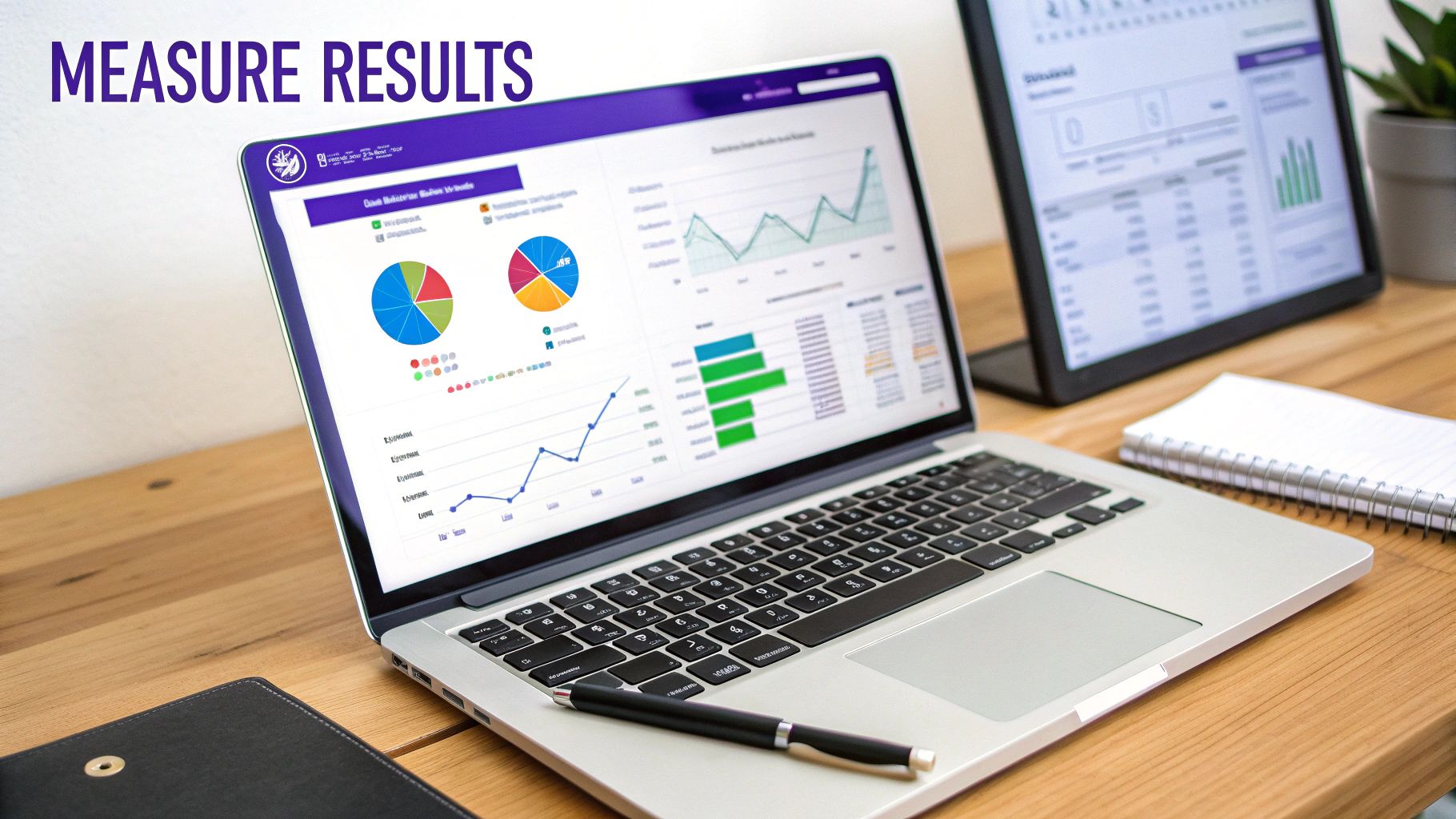
First, pick a few key pages on your site to be your guinea pigs. I usually go with the homepage, a popular blog post, and a media-heavy WooCommerce product page, as they give a good mix. Run them through a tool like Google PageSpeed Insights or GTmetrix and save the results (a screenshot works perfectly).
Then, after your plugin has worked its magic on the images, run the exact same tests again. Now you have a clear comparison.
Pinpointing Key Performance Metrics
When you're looking at your reports, it's easy to get lost in a sea of numbers. Don't sweat it. Just focus on the metrics that are most impacted by image optimization. Knowing what to track is half the battle, and if you're new to this, a good beginner’s guide to analytics can really help build a solid foundation.
Specifically, you’re looking for big improvements in these areas:
When you're comparing your speed test reports, it’s all about focusing on the right metrics to see the impact of your work.
| Key Performance Metrics to Track | |
|---|---|
| Metric | What It Measures |
| Largest Contentful Paint (LCP) | A Core Web Vital that measures how long it takes for the largest image or text block to become visible. Optimized images make a huge difference here. |
| Total Page Size | This is the most direct measurement of success. You should see a significant drop in the page's total weight in kilobytes (KB) or megabytes (MB). |
| Image File Sizes | The waterfall chart in GTmetrix is your best friend. It shows the individual file sizes of your images, making it easy to spot the dramatic "before" and "after" difference for each one. |
Seeing these numbers change for the better gives you concrete proof that your optimization efforts are working.
There's nothing more satisfying than showing a client their page's LCP drop from a sluggish 4.5 seconds to a snappy 2.1 seconds. That’s not just a technical tweak; it's a measurable improvement to user experience that everyone can understand.
Common Troubleshooting Scenarios
Of course, things don’t always go perfectly on the first try. If you run into issues, don't panic. I've been there, and most problems are surprisingly easy to sort out.
A classic issue is blurry or fuzzy images after optimization. If your visuals look a bit off, it’s almost always because the plugin's compression level is too aggressive. Just dial it back from a "lossy" setting to a more conservative one and re-run the optimization on those specific images.
Another one I see a lot is a conflict with the Divi theme or another plugin, especially ones that handle sliders or galleries. If images are suddenly broken or just not showing up, your first move should always be to clear all your caches—plugin, server, and CDN. If that doesn't fix it, the next step is to temporarily deactivate other plugins one by one to find the culprit. It's a simple process of elimination that will help you isolate and solve the problem quickly.
Got Questions About Image Optimization? We’ve Got Answers.
When you dive into optimizing images, a few common questions always seem to pop up. It doesn't matter if you're a seasoned Divi pro or just launching your first WooCommerce store—getting a handle on these basics will save you headaches and help you build a much faster site.
Let’s clear up some of the most frequent ones I hear.
What’s the Real Difference Between Lossy and Lossless Compression?
Think of it like this: compression is all about making your image files smaller, but these two methods go about it in completely different ways.
Lossy compression is the more aggressive approach. It intelligently removes tiny bits of image data that the human eye will likely never notice. The result? A massive reduction in file size. It's like making a super-efficient copy of a photo; you might lose an imperceptible detail here or there, but the file is now a fraction of its original weight. This is your go-to for pretty much all photos on your website.
Lossless compression, on the other hand, plays it safe. It only removes non-essential metadata from the file—think information about the camera used or the date the photo was taken—without touching a single pixel of the actual image. The file size reduction is much smaller, making it perfect for logos, icons, or detailed technical graphics where every pixel has to be razor-sharp.
For almost any Divi or WooCommerce site, a smart lossy setting is what you want. The speed gains you get from smaller file sizes are what really move the needle for user experience and your SEO rankings.
If I’m Using an Optimization Plugin, Do I Still Need a CDN?
Yes, 100%. It's a common misconception that they do the same job, but they actually solve two very different performance problems. An image optimization WordPress plugin and a Content Delivery Network (CDN) are a powerhouse duo.
- An optimization plugin shrinks the size of your image files.
- A CDN shrinks the physical distance those files have to travel to get to your visitor.
A CDN works by storing copies of your images on servers all over the world. When a user in London visits your site (hosted in Los Angeles), the images are delivered from a server in London, not California. This dramatically reduces latency and makes your site feel incredibly fast, no matter where your visitors are.
Many modern optimization plugins now come bundled with their own image CDN, giving you a fantastic all-in-one solution.
Can an Image Optimization Plugin Actually Break My Website?
It's pretty rare for a well-built, reputable plugin to cause major issues, but conflicts aren't impossible. When they do happen, it's usually a squabble with another plugin—often something heavy on JavaScript like a complex gallery or slider—or a conflict with aggressive caching settings.
My advice is simple: always back up your site before you install any new plugin. It's a non-negotiable first step.
Once you activate it, click through your most important pages. Look for broken images or layouts that seem off. If you spot trouble, the first thing to do is clear all your caches (plugin, server, and CDN). If that doesn't fix it, the plugin's support team should be your next stop. They're the experts at troubleshooting conflicts, especially ones that might be specific to themes like Divi.
At Divimode, we build tools that help you create exceptional, high-performing websites. To add powerful popups, fly-ins, and other interactive elements that engage visitors without slowing your site down, check out our premium plugins at https://divimode.com.
More Articles You Will Like